





Feederloop
Feederloop integration with LiveAgent enables seamless video calls, co-browsing, and session replays directly from your live chat. Connect with customers via vi...
2 min read

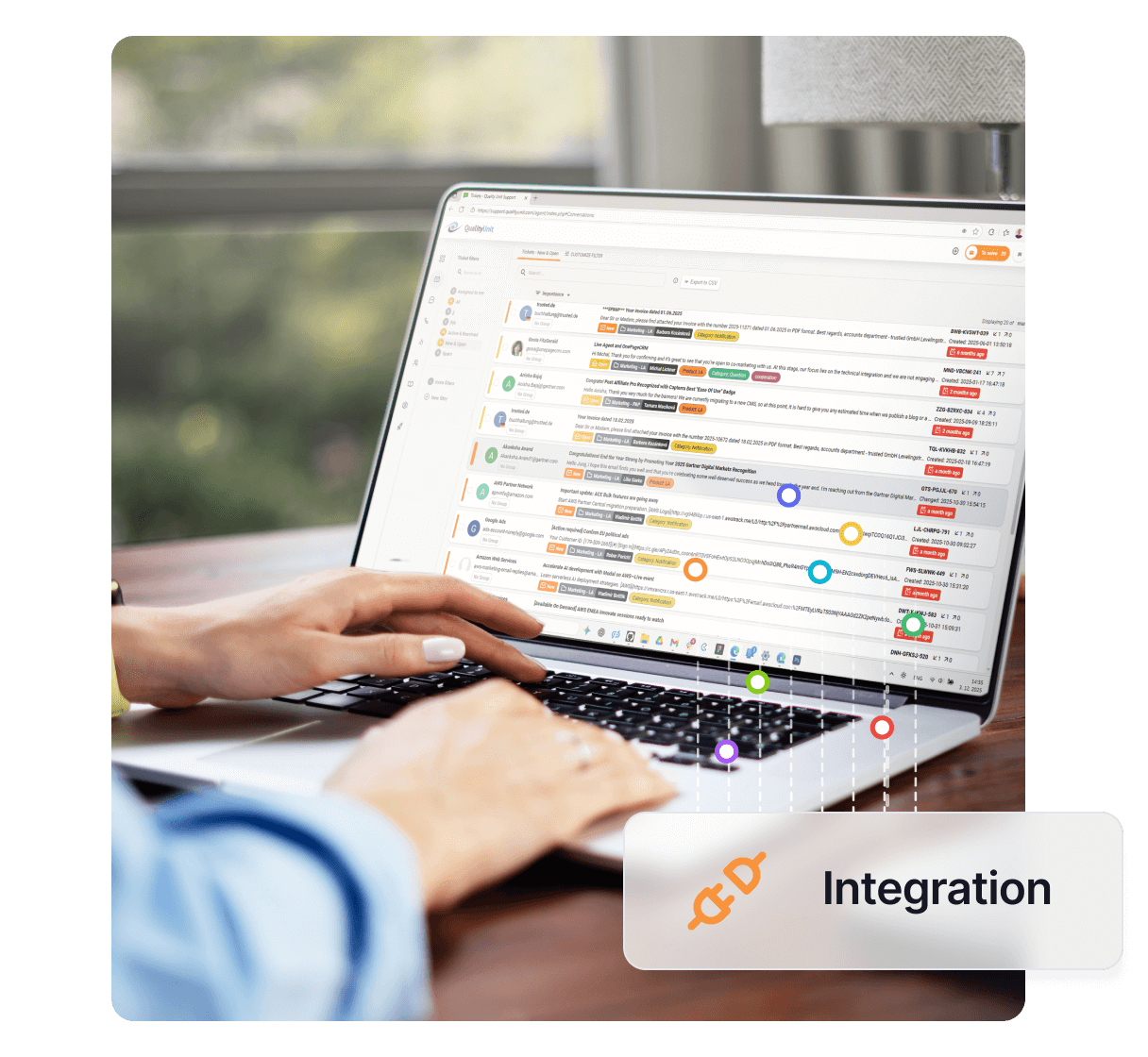
Vectera integrates with LiveAgent for seamless video conferencing and whiteboarding, enhancing communication for students, teachers, and businesses. Track meetings via LiveAgent’s ticketing system, improving workflow without switching apps.
Vectera is a video conferencing software, which allows its users to schedule and attend video conferences. It also allows them to whiteboard together on various projects. Vectera is an ideal solution for students, teachers, and business owners of any kind. It allows you to connect with up to 6 people at the same time.

Start your free trial today and see results within days.
The main feature of Vectera allows users to connect online via video conferences.
You can take advantage of this in various scenarios, such as business meetings, last-minute meetings, teaching classes, or even face to face calls with customers to provide them with support. This allows you to increase your workflow even when you’re working remotely and need to collaborate with colleagues and clients.
Thanks to integration with LiveAgent, you can easily keep track of scheduled meetings within your ticketing system without having to switch apps. Handle your live chats or calls while keeping track of your Vectera meetings.
The latest tips and deals delivered straight to your inbox.
Follow this simple guide and integrate Vectera with LiveAgent. If you don’t have your Vectera account yet, you can create a free trial account at this link. Once you’re logged in, go to your dashboard and select Scheduling. You have to connect your online calendar with Vectera before you can proceed. When you do, go to Scheduling > Scheduling settings and click on ‘Get embeddable link".
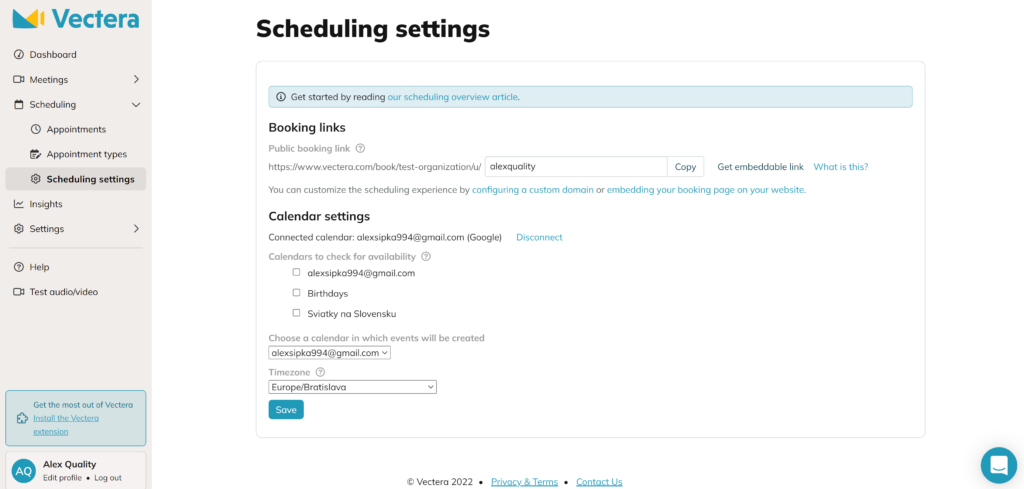
Now place your link into the code below. You need to replace YOUR_PUBLIC_BOOKING_URL with your embeddable link from Vectera.
<iframe style="width: 100%; height: 600px;" src="YOUR_PUBLIC_BOOKING_URL"10″></iframe>
Then simply place this entire line of code into the code of your website, in the section where you want the booking page to display. The width and height are adjustable, so you can customize the size.
Now you need to enable external display of external info in a ticket. Go to LiveAgent and open Configuration > Plugins. Find the Display external info in a ticket plugin and activate it.
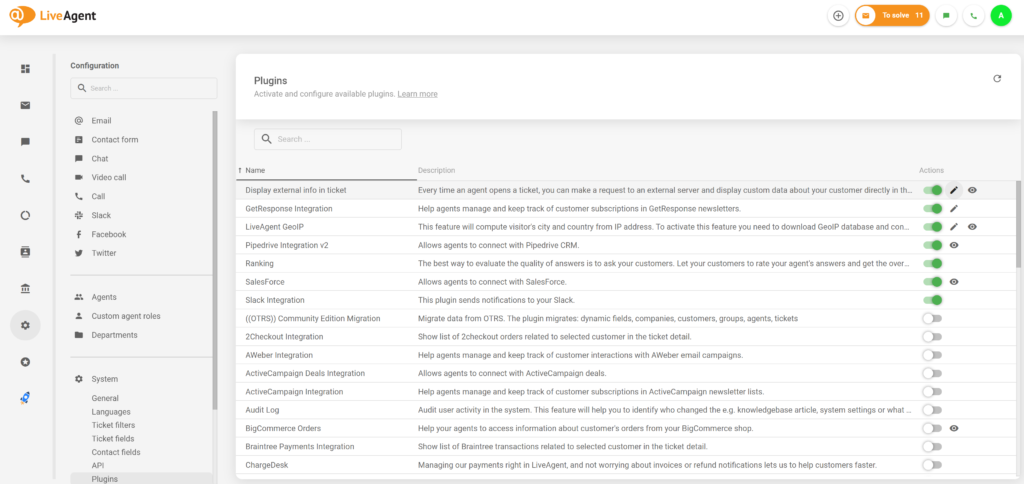
Then click on the Edit button next to the active plugin, and adjust settings like this:
Now the last step. Go to Configuration > Security > Settings and Enable CSP headers for the Agent panel. Then insert frame-src *.vectera.com. Go to the ticket and resize the right bar. The integration is finished.

No problem! LiveAgent offers a 30-day free trial where you can test the free Vectera integration!
Feederloop integration with LiveAgent enables seamless video calls, co-browsing, and session replays directly from your live chat. Connect with customers via vi...
Integrate Viber with LiveAgent for seamless customer support. Convert Viber messages into tickets, streamline communication, and boost efficiency with our help ...
Join our community of happy clients and provide excellent customer support with LiveAgent.
Cookie Consent
We use cookies to enhance your browsing experience and analyze our traffic. See our privacy policy.