

Shopify
Shopify integration with LiveAgent enhances e-commerce support with live chat, phone support, and customer order management. Boost engagement and satisfaction w...
6 min read


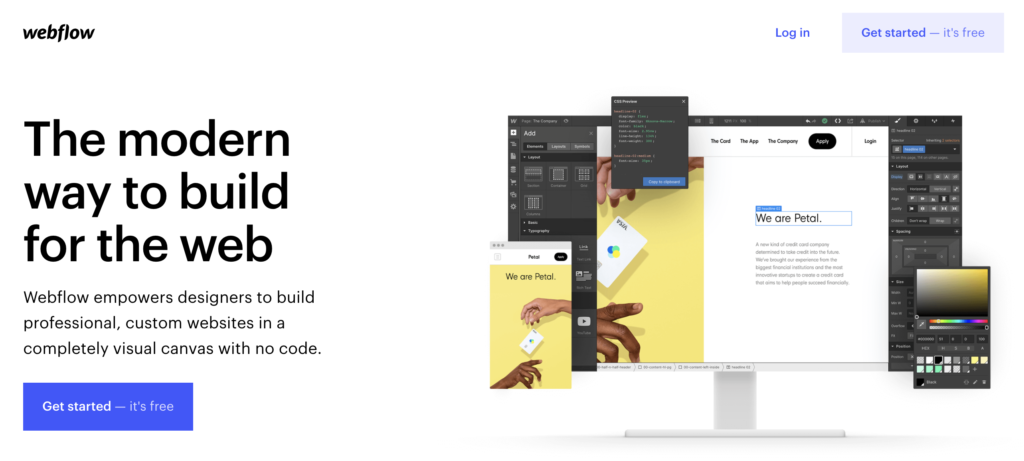
Integrate LiveAgent’s live chat into your Webflow site for real-time customer support, boosting sales. Webflow is a no-code platform for responsive sites. Easily add the chat widget by embedding code, enhancing engagement and customer satisfaction.
It is a website-building platform that requires no use of code. That makes it easy to use for both beginners and advanced users. Webflow supports responsive websites and generates code while you design the website via their interface. Create stunning websites for business, blog, portfolio, or university.
Looking to promote your business online? Start using Webflow and create your dream website with their amazing editor. You don’t need to learn how to code, simply build it by eye and get it running. Webflow is ideal for creating websites for most common purposes, such as a business, blog, or online stores. Make sure to give your customers exactly what they’re looking for with your amazing website.
The best part is, you can use LiveAgent to handle your customer support thanks to live chat and more tools. LiveAgent’s live chat widget makes it easy for your customers to get answers to their questions. Furthermore, it can increase your sales capabilities thanks to its easy accessibility. Browsing customers can hit it and ask questions about any product they desire, which means you can work your magic and convince them about its qualities.
The live chat is also fully featured to make your job easier in many regards. Have a look at features such as the real-time typing view that lets you see what your customers type before they hit send, or proactive chat invitations that let you get noticed by website visitors. The live chat widget is also among the fastest chat widgets available – with chat displayed speeds at 2.5 seconds.
Integrating the LiveAgent live chat widget onto your Webflow website is an easy process that can be completed in just a few minutes. All you have to do is embed the code and save it on your website. Follow the guide below to learn how to do it.
New to Webflow? Head over to their website and start creating your website today. It’s free of charge, but you will need a paid plan to embed chat widgets later on. Once you get familiar with the interface and get your website ready to go live, head over to the next step.
Now you will learn how to create a chat button in LiveAgent. Open your LiveAgent account (or start your free 30-day trial if you don’t have one) and go to Configuration > Chat > Chat Buttons and click on the Create button at the top.
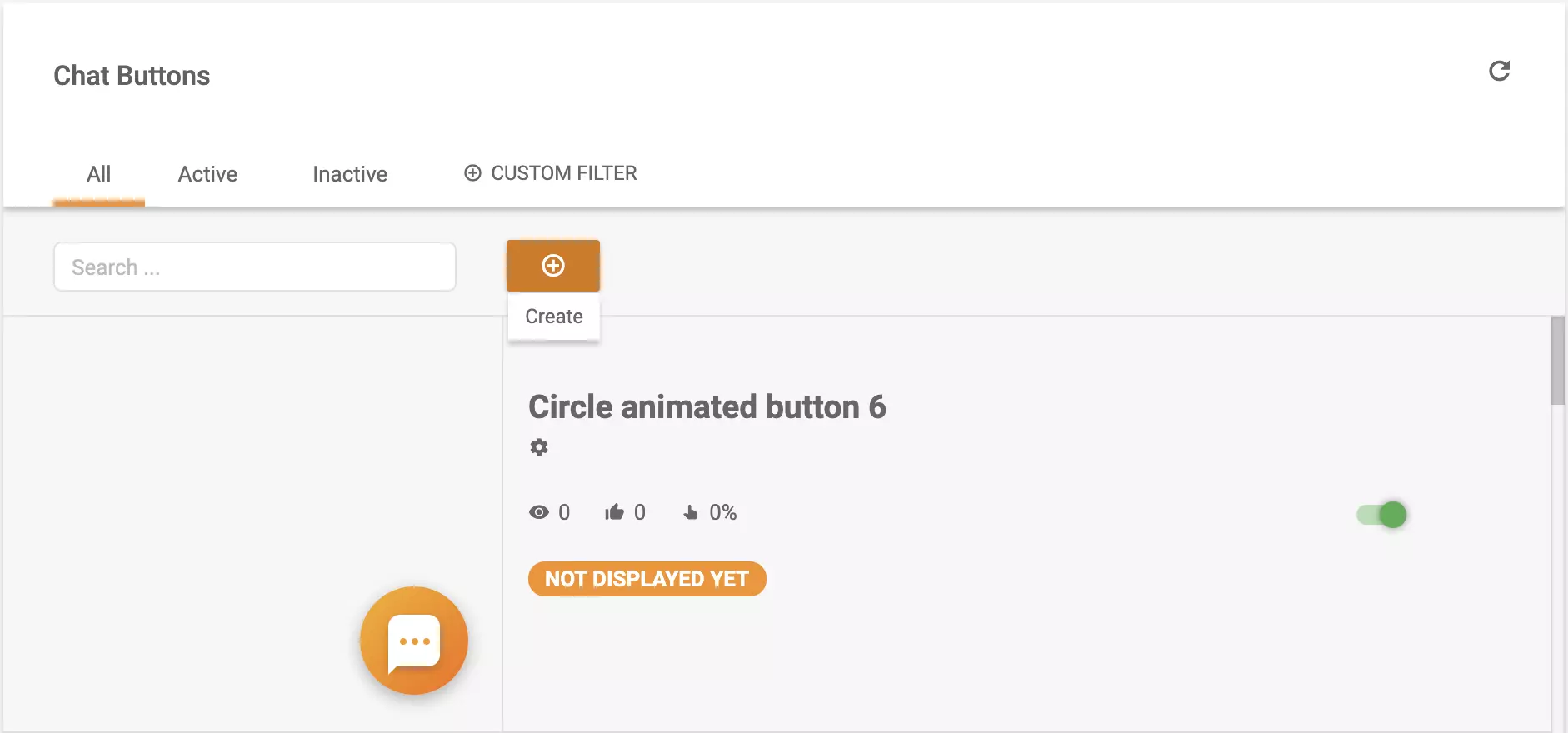
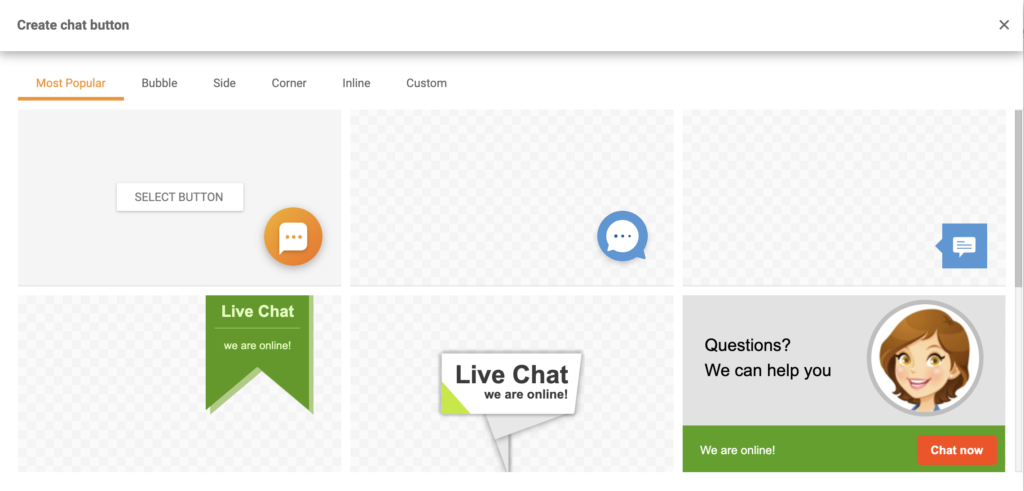
Make sure to browse through the chat button gallery and pick the right button for your website. You can customize it and pick from multiple options – bubble, side, corner buttons, and more. There’s also an option to upload your own button design from an image or HTML. The choice is yours.
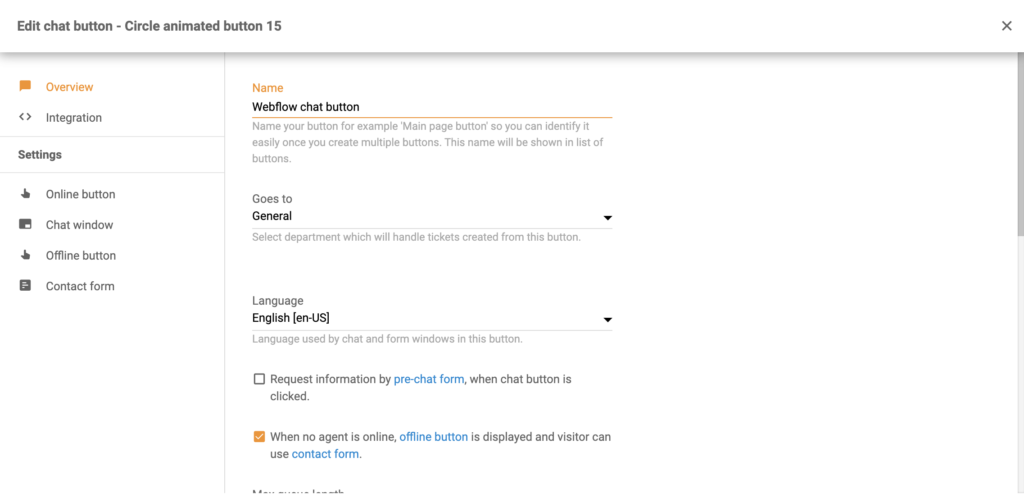
When you’re done selecting a design it’s time to configure the button. Give the button a distinct name, select the department responsible for chats and pick a language. Then browse through the other settings on the page and customize the button to your liking. It’s easy to do so. When you’re done, Save the button or test it first to see if it’s up to your standards.
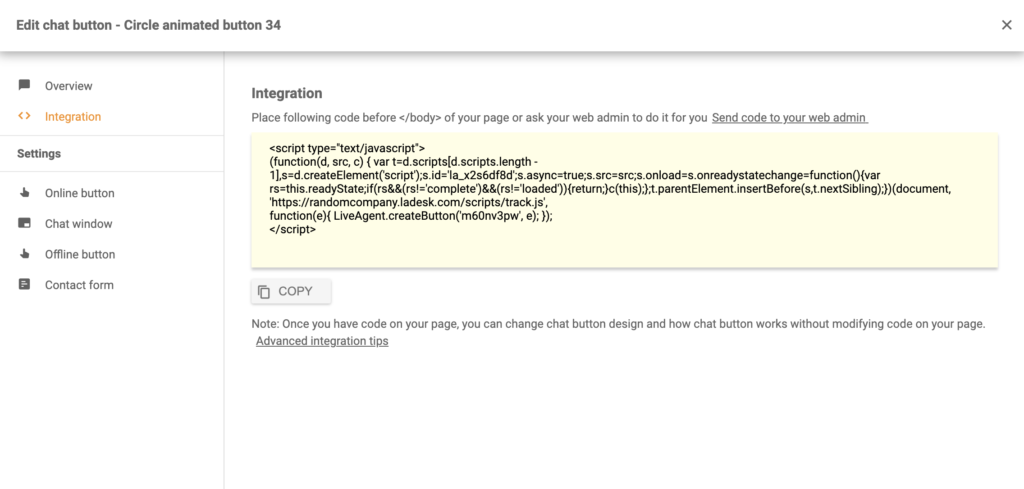
Now head over to the integration section of the chat button configuration. You can see it in the left panel. When you’re there, copy the code and head over to your Webflow page editor.
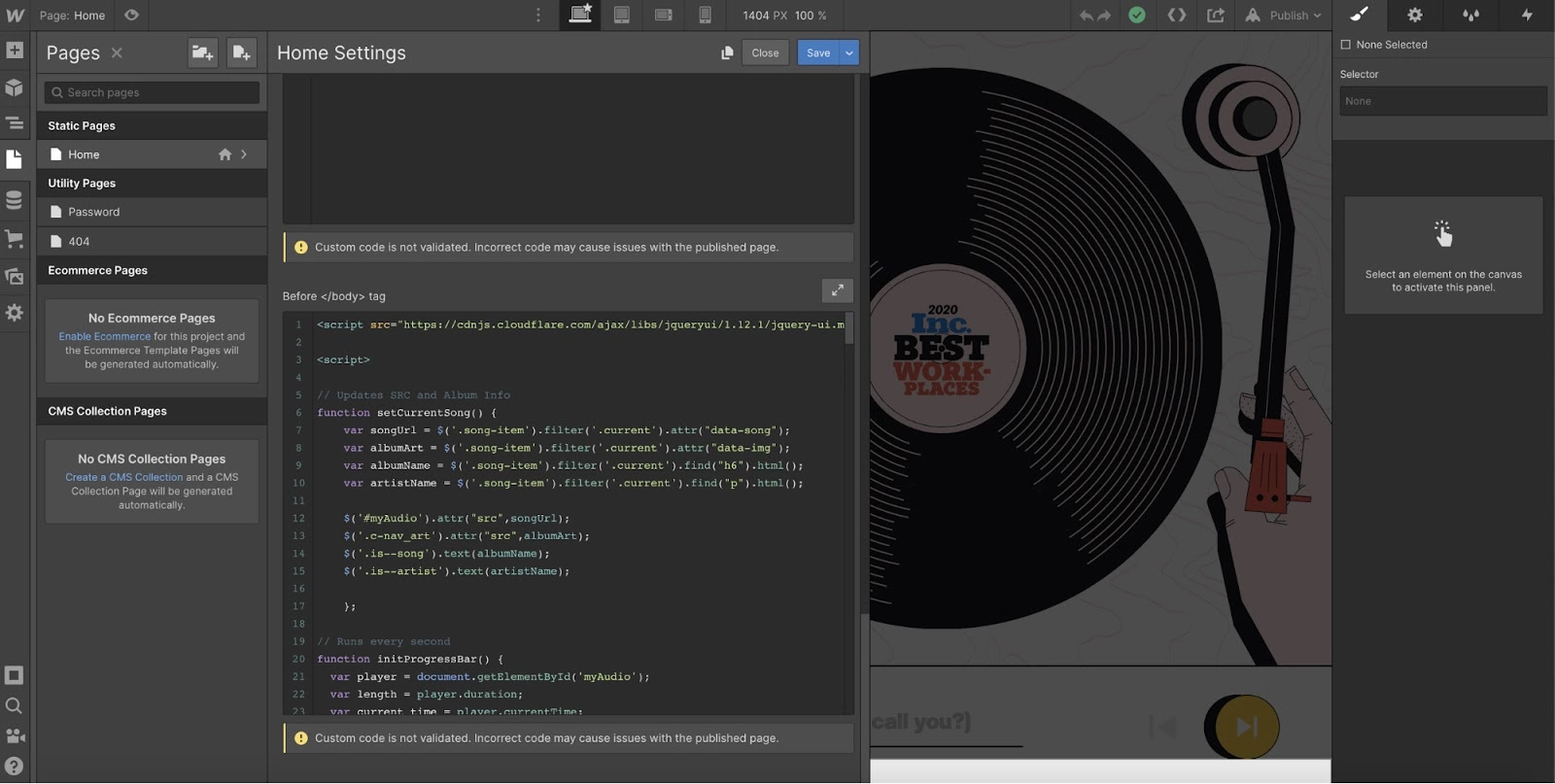
In the Webflow editor, go to the left panel and click on Pages. Select the page where you want to place your LiveAgent live chat button and scroll down until you see the Custom Code option. Place the button into your code and Save. You’re done.
Now you’re ready to answer any incoming customer questions and requests with amazing speed. Looking to learn more about providing live chat support? Browse through LiveAgent Academy articles to learn how to respond to customer issues with ease.
This website-building tool lets you create your own website without having to write any code. Therefore, it is easy to learn and use both by beginners and advanced users. Websites can be designed via the Webflow interface, which generates code while you design it.
Get started with Webflow and create the website of your dreams. There's no need to learn how to code; just build it by eye and you'll be up and running in no time. With WebFlow, you can create websites for a variety of purposes, including business, blogs, and e-commerce. After that, you can place a LiveAgent live chat button and provide website visitors with a fast communication method.
The benefits are: advanced website builder, no coding required, supports responsive websites, fidelity between mockups and live sites.
Go to LiveAgent's Configuration > Chat > Chat Buttons and Create a new chat button. Copy the chat button code from the Integration section. Paste the code into your Webflow website code.
Place a chat button on your website and provide guidance and support for your visitors today
Shopify integration with LiveAgent enhances e-commerce support with live chat, phone support, and customer order management. Boost engagement and satisfaction w...
Wix is a website builder offering templates and widgets. Integrating LiveAgent with Wix lets businesses add live chat buttons for improved customer support, enh...

Enhance your eCommerce site with LiveAgent's fast live chat and robust knowledge base. Boost customer engagement, satisfaction, and sales with personalized omni...
Join our community of happy clients and provide excellent customer support with LiveAgent.