

Valentine's Day promotion background
14.Feb - 13.Mar 2026

Valentine deal

AI UNLOCKED
For new and existing customers for 3 months
Tag Reports

Tag Reports

Tag Reports Reporting Ticket Management Workflow

What are Tag Reports?

Tags are simply words or phrases you can use to add more context and information to tickets. Tags provide you with an unlimited amount of flexibility to manage and customize your support workflow. Whether you’re organizing sales inquiries, urgent issues, or specific product categories, tags help you keep your support system organized and efficient.

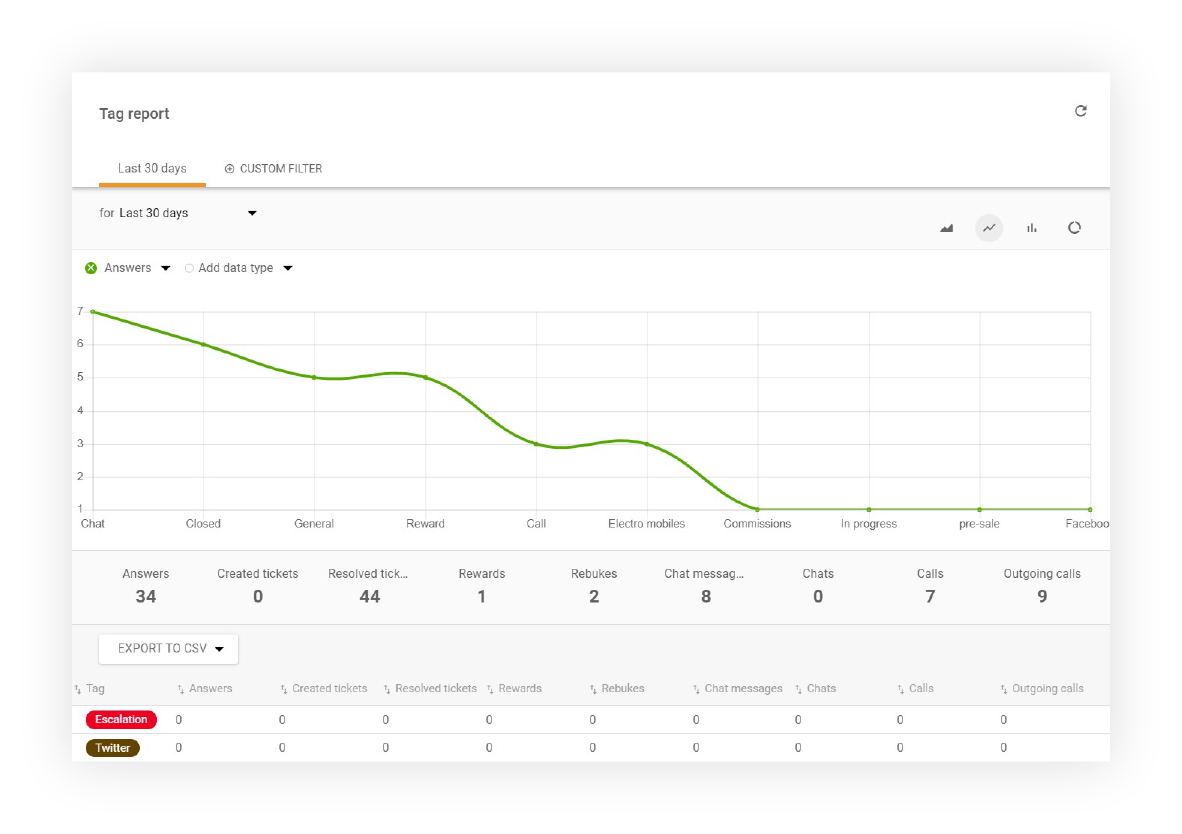
Tag report example in LiveAgent

Why are Tag Reports Valuable?

Tag reports are essential for modern customer support teams because they:

  • Organize tickets effectively - Categorize tickets by type, priority, department, or any custom criteria
  • Create custom workflows - Use tags in business rules to automate ticket handling and routing
  • Generate actionable insights - Create detailed reports to analyze support performance by tag
  • Improve team productivity - Filter and focus on specific ticket categories
  • Track performance metrics - Monitor response times, resolution rates, and other KPIs by tag
  • Enable data-driven decisions - Export reports to CSV for deeper analysis
  • Maintain flexibility - Add unlimited tags with custom colors and naming conventions
  • Streamline communication - Ensure consistent ticket categorization across your team

How Tags Work

Adding Tags to Tickets

You can add tags to tickets in multiple ways:

  • Manually - Add tags directly to individual tickets as needed
  • Automatically - Use business rules to automatically apply tags based on ticket criteria
  • Multiple tags - Add multiple tags to a single ticket for comprehensive categorization

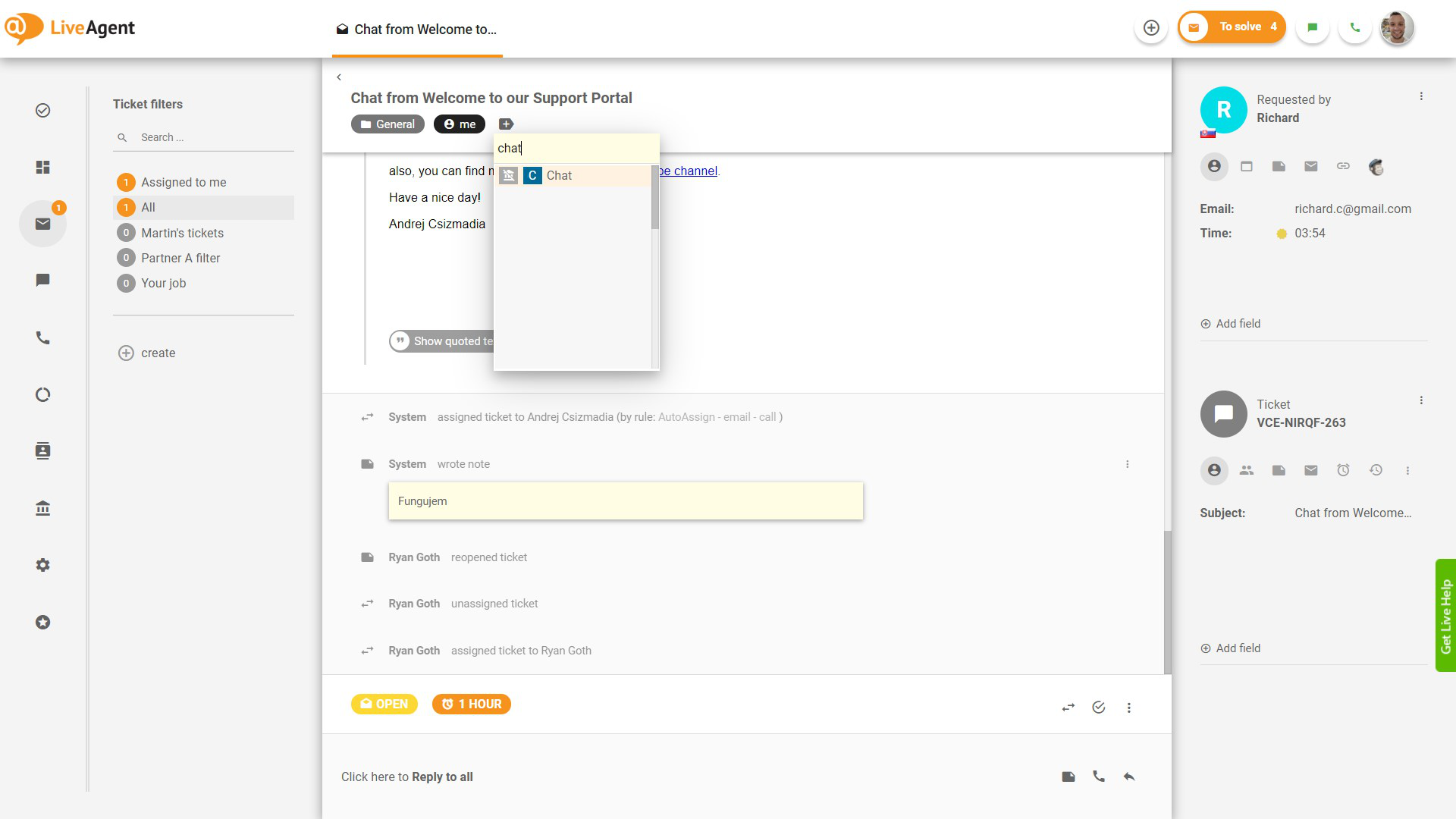
For example, you might tag all sales inquiries with “sales” or “pre-sales” tags, or mark urgent issues with an “urgent” tag.

Adding a tag to a ticket in LiveAgent

Filtering Tickets by Tags

Once you’ve tagged your tickets, you can easily filter them to view specific groups. This allows you to focus on particular ticket types or priorities. For example, you might filter to view all urgent pre-sales queries to ensure they receive priority attention.

Filtering tickets by tags in LiveAgent

Customizing Your Tags

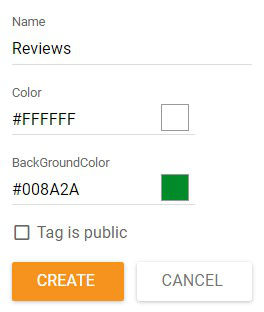
When creating a tag, you have complete control over its appearance and properties:

  • Name - Choose any name that makes sense for your workflow
  • Text Color - Customize the text color for better visibility
  • Background Color - Set a background color to make tags stand out
Modifying tag properties in LiveAgent

Tag Report Features

LiveAgent offers comprehensive tag reporting capabilities to help you analyze your support performance:

Chart Types

Tag reports can display your data in multiple visualization formats:

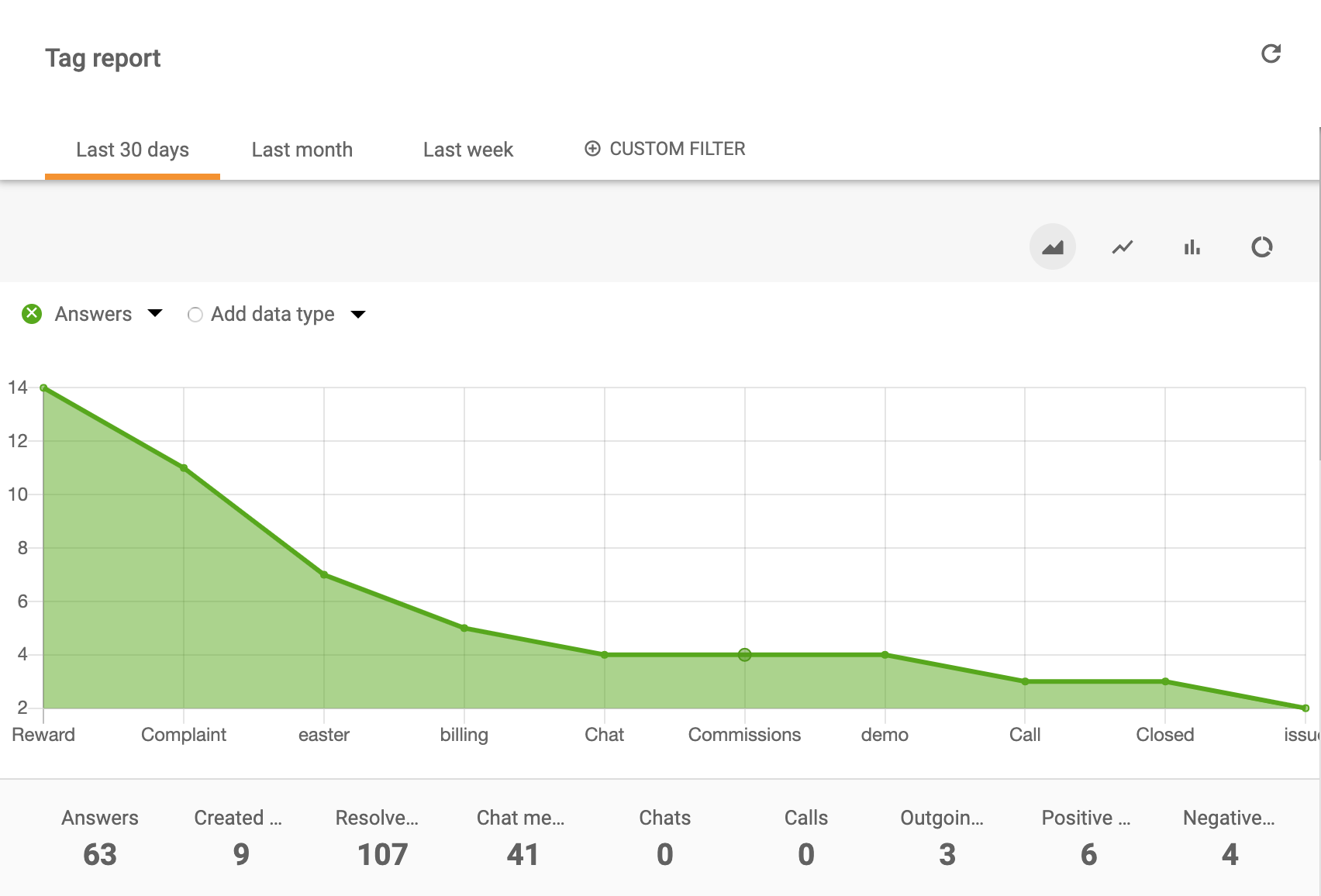
  • Area Charts - Show trends over time with filled areas
Tag report area chart
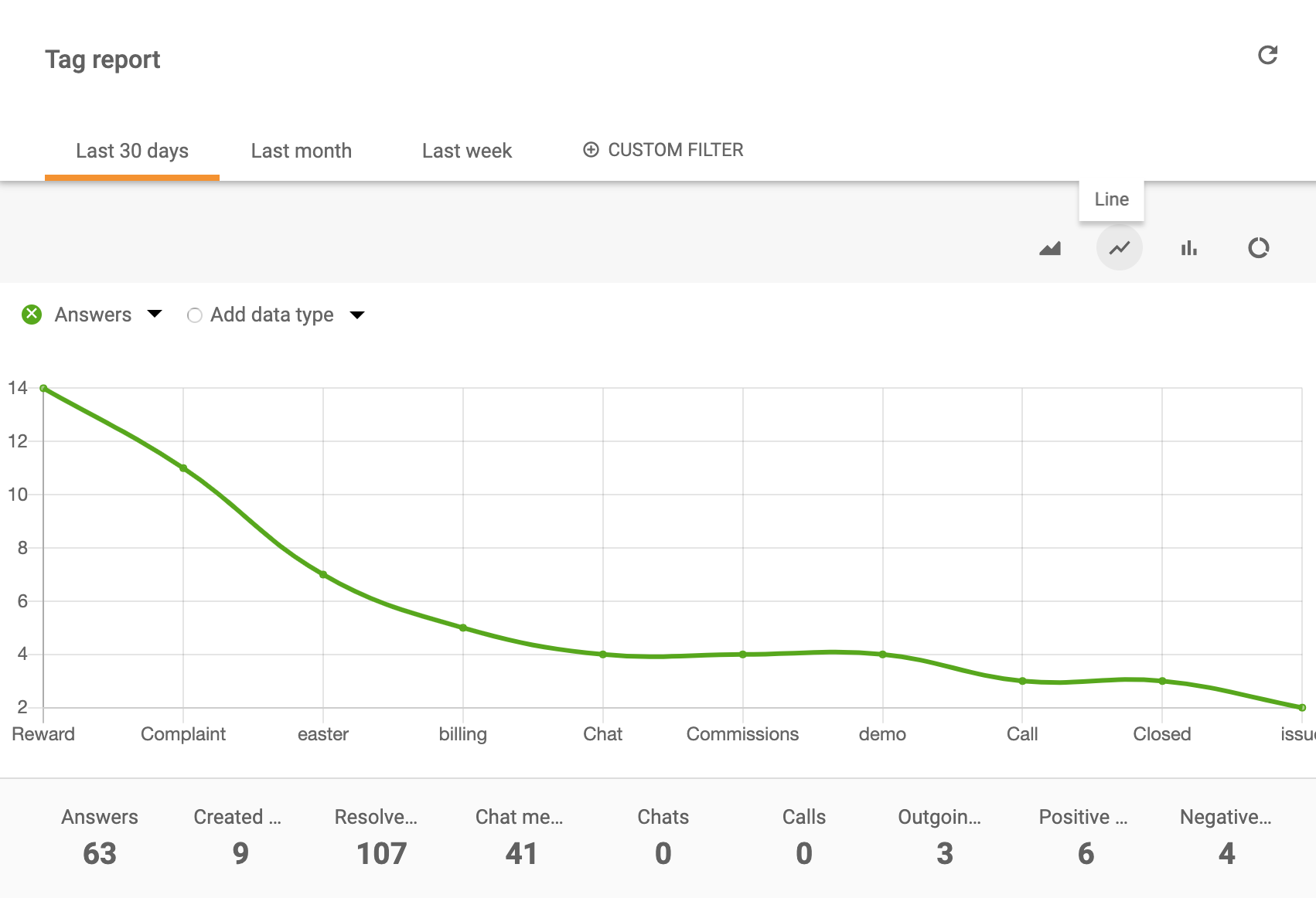
  • Line Charts - Display trends with connected data points
Tag report line chart
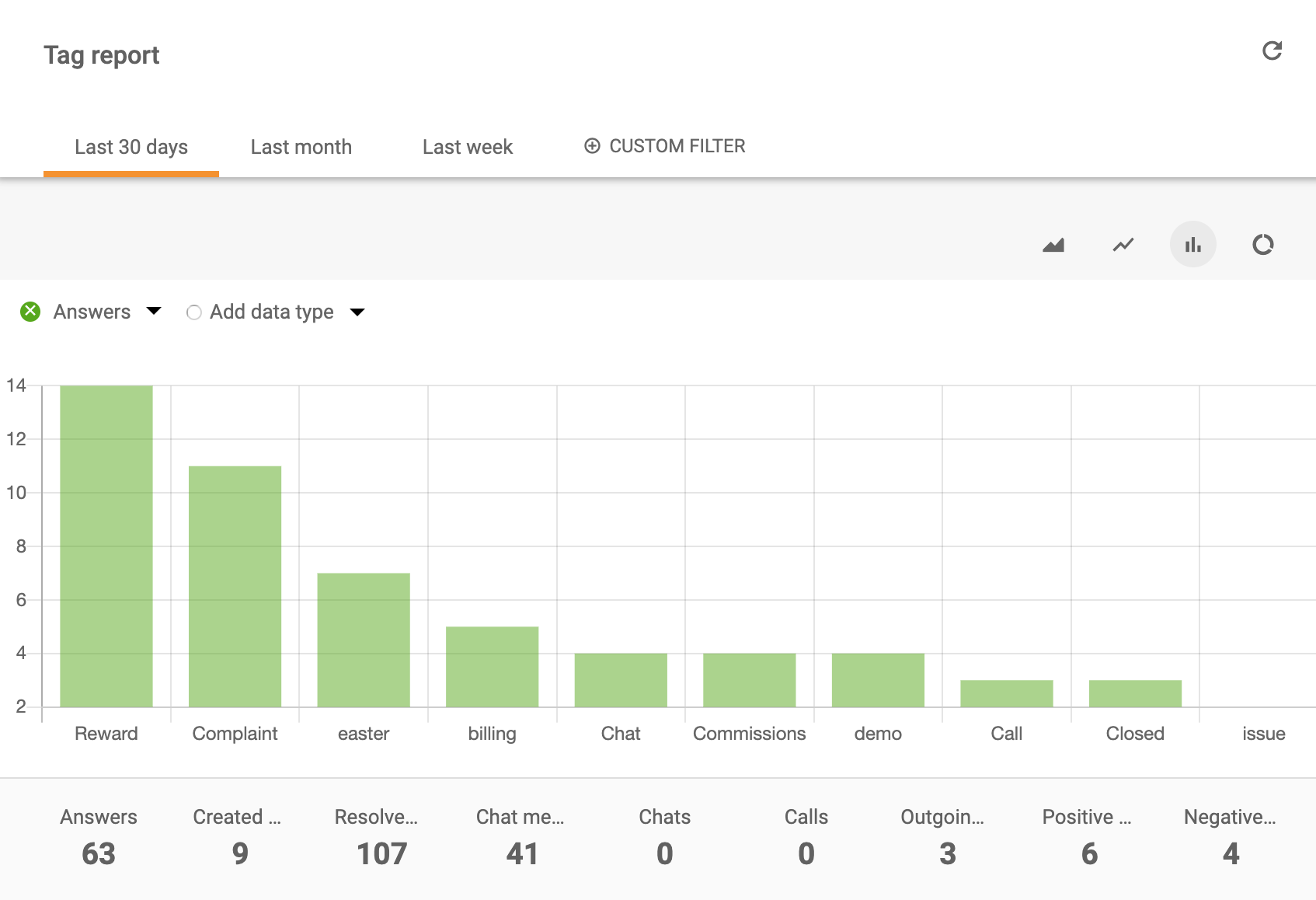
  • Bar Charts - Compare values across categories
Tag report bar chart
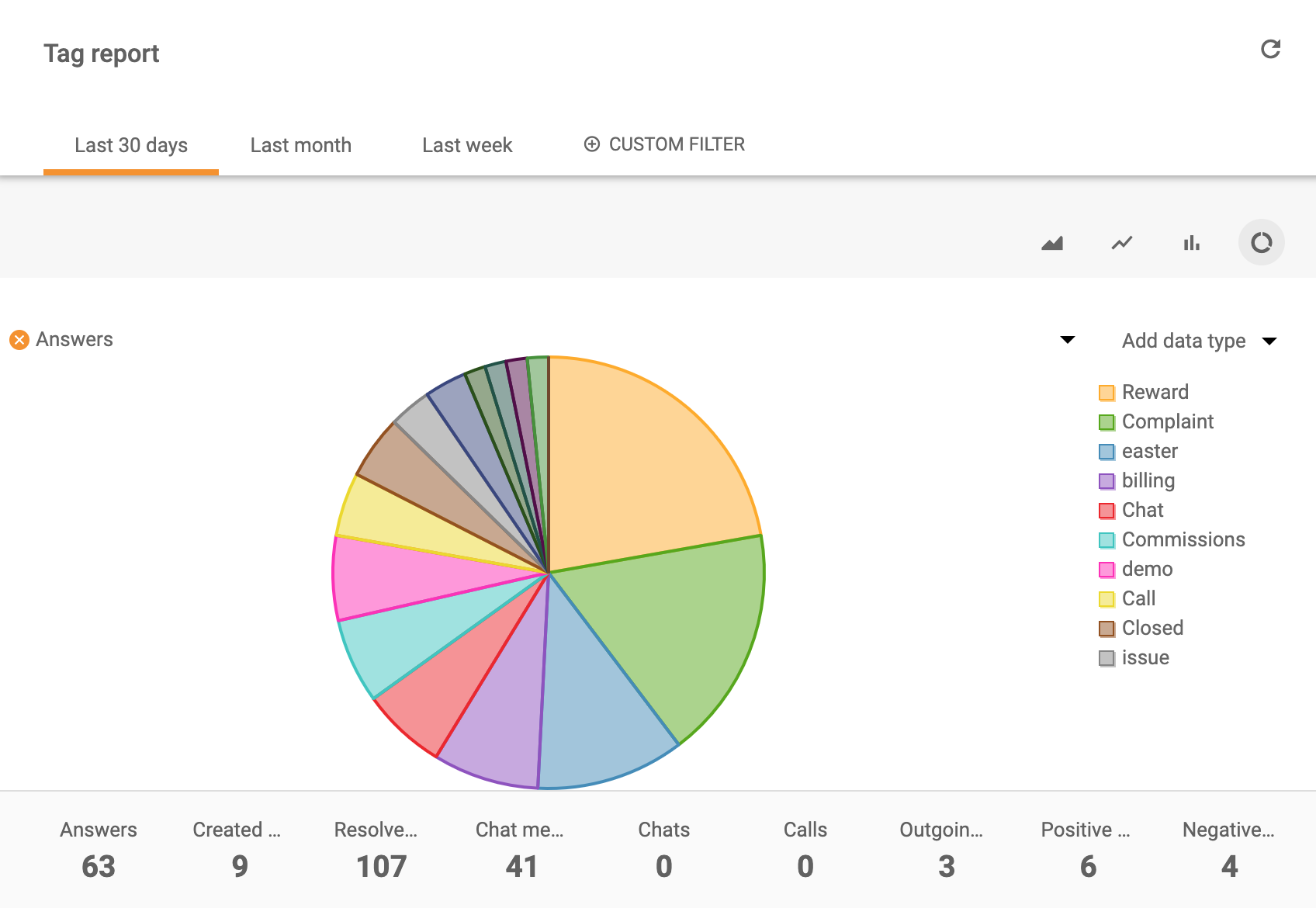
  • Pie Charts - Show proportional distribution
Tag report pie chart

Report Customization

You can customize your tag reports by:

  • Time Range - Select specific periods for analysis
  • Department - Filter reports by department
  • Channel - View data by communication channel
  • Agent - Analyze individual agent performance
  • Export - Download reports to CSV format for further analysis

Available Report Metrics

Tag reports can display a comprehensive range of metrics:

  • Tag
  • Answers
  • New answer average time
  • Open answer average time
  • Calls
  • Missed calls
  • Call minutes
  • Chat messages
  • Chats
  • Missed chats
  • Chat pickup average time
  • Chat average time
  • Not ranked
  • Not ranked percentage
  • Rewards
  • Rewards percentage
  • Rebukes
  • Rebukes percentage
  • Incoming messages
  • Incoming calls
  • Finished calls
  • Incoming chats
  • Finished chats
  • Notes
  • Created tickets
  • Resolved tickets

Using Tags in Your Workflow

Options for Using Tags

Here are some powerful ways to leverage tags in LiveAgent:

  • Add tags manually or automatically - Apply tags to tickets as they arrive or manually when needed
  • Create custom workflows - Use tags in business rules, SLA rules, and time rules to automate ticket handling
  • Browse by tag - Quickly find and view all tickets with specific tags
  • Generate reports - Create detailed reports to analyze performance by tag
  • Create views - Build custom ticket views filtered by specific tags

Integration with Business Rules

Tags work seamlessly with LiveAgent’s automation features:

  • Rules - Automatically apply tags based on ticket criteria
  • SLA Rules - Set different SLA targets for different tag categories
  • Time Rules - Trigger automated actions based on tags and time conditions

Advanced Features

API Integration

You can leverage LiveAgent’s REST API to programmatically access tag report data. This allows you to:

  • Pull tag report data into external systems
  • Create custom dashboards and analytics
  • Automate report generation and distribution
  • Integrate tag data with your business intelligence tools

For detailed API documentation, visit the Complete API reference .

Generate SLA Compliance Reports

Create SLA compliance reports to get an overview of how many SLAs have been fulfilled in a specific period of time. Monitor your team’s performance and identify areas for improvement with detailed tag-based reporting.

Knowledge Base Resources

Need more help with tag reports? Check out these detailed guides:

Ready to Organize Your Support Workflow?

Start using tag reports to categorize tickets, create custom workflows, and generate insightful reports today. Improve your customer support efficiency and team productivity with LiveAgent’s powerful tagging and reporting features.

Start your 30-day free trial now. No credit card required.

Frequently asked questions

What are tags in LiveAgent?

Tags are words or phrases you can add to tickets to provide more context and information. They offer unlimited flexibility to manage and customize your support workflow, allowing you to categorize tickets, create custom workflows, and generate detailed reports.

How do I add tags to tickets?

You can add tags to tickets either manually or automatically. Tags can be applied individually to tickets, and you can add multiple tags to a single ticket. Tags can also be used in business rules to create custom workflows.

Can I filter tickets by tags?

Yes, you can filter tickets by tags to view specific groups of tickets. This allows you to organize your support workflow and focus on specific ticket categories or types.

What types of charts can tag reports display?

Tag reports can display your data in multiple chart types including area charts, line charts, bar charts, and pie charts. You can also export reports to CSV format for further analysis.

What information can be displayed in tag reports?

Tag reports can display various metrics including tags, answers, response times, calls, missed calls, chat messages, chat metrics, performance ratings, and many other customer service metrics. You can customize which columns to display in your reports.

Transform your customer support experience

Discover LiveAgent's powerful features that streamline communication, increase efficiency, and boost customer satisfaction.

Learn more

Tags features
Tags features

Tags features

Tags in LiveAgent help organize help desk tickets, enhancing agent efficiency and response times, leading to better customer satisfaction and revenue. They can ...

5 min read
Tags Ticket Management +1

Call Tag
Call Tag

Call Tag

Enhance call center efficiency with LiveAgent's customizable call tags. Organize calls, boost customer service, and increase sales. Try free now!

4 min read
Customer support Call Center software +1
Agent Report Features

Agent Report Features

Get detailed insights into agent performance with LiveAgent's Agent report. Track work time, tickets, chats, calls, and more. Export data to CSV and use charts ...

3 min read
Reporting Analytics +1

You will be in Good Hands!

Join our community of happy clients and provide excellent customer support with LiveAgent.
Post Affiliate Pro Dashboard - Campaign Manager Interface