

AI Answer Composer
Transform customer support with LiveAgent AI Answer Composer—generate perfect, context-aware replies. Try it free for 30 days!
5 min read
AI features
Response generator
+2


Empower your support with LiveAgent’s AI Answer Improver—refine, extend, or simplify replies instantly. Start your free trial today!
Efficient and effective customer communication is essential for every modern business. LiveAgent’s AI Answer Improver empowers your support agents to deliver clearer, more polished, and more professional responses in seconds—boosting productivity, elevating service quality, and strengthening customer trust.
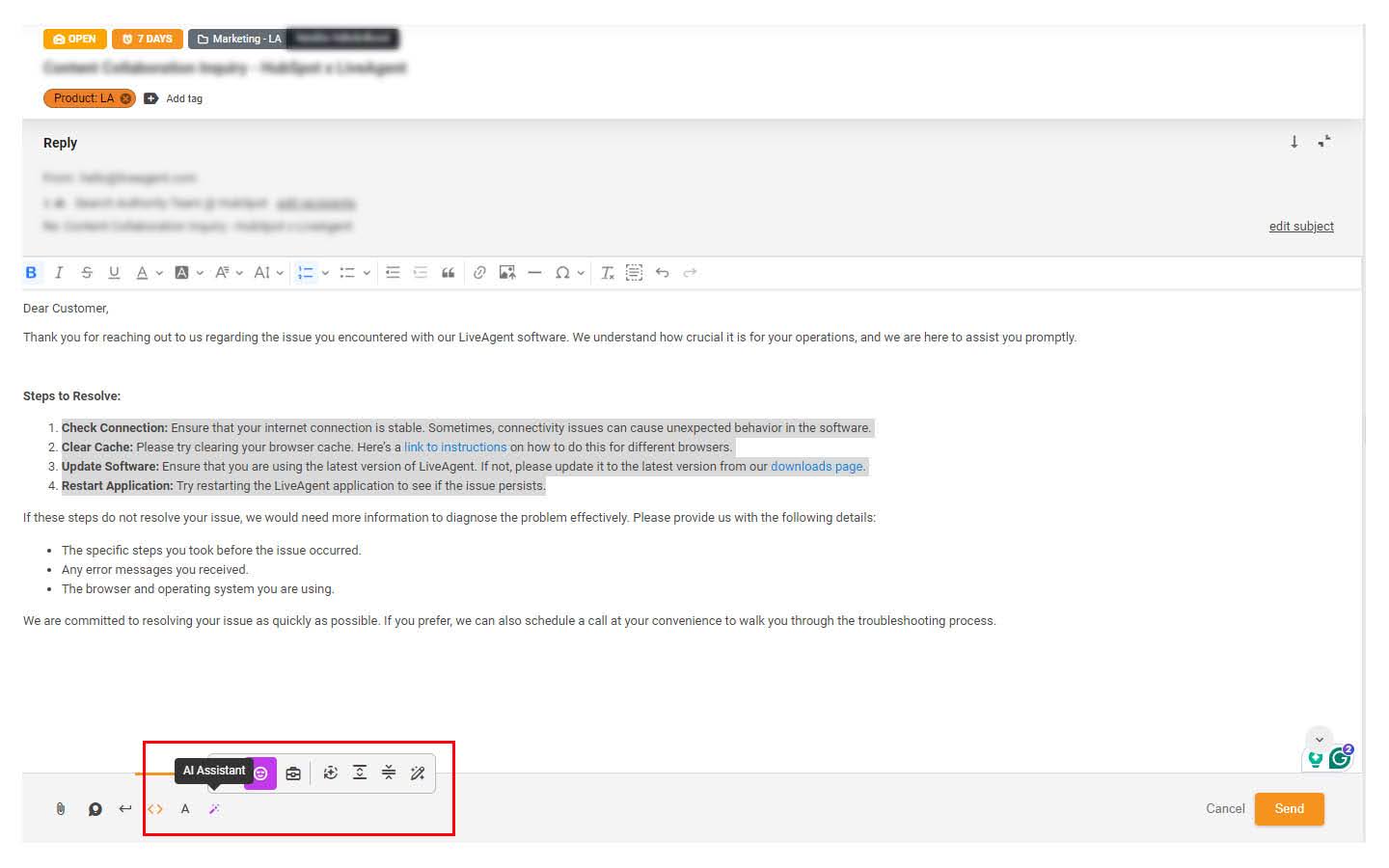
AI Answer Improver is a powerful enhancement tool built directly into LiveAgent that helps agents refine, improve, extend, or generate their replies. The Answer Improver feature is accessible from the ticket reply editor by clicking on the Answer Improver (magic pen icon) button.
To use the AI Answer Improver feature, it is required to connect your LiveAgent account with FlowHunt or OpenAI. FlowHunt, our no-code AI automation platform, is a product of our company, Quality Unit, like LiveAgent. By utilizing our AI features with FlowHunt, we ensure data safety and offer priority support. For customers with active LiveAgent & FlowHunt subscriptions, our support team offers a full initial setup.
AI Answer Improver is currently available in LiveAgent trials as well as in Small business, Medium business, Large business, and Enterprise plans. It is not included in Legacy and Free plans.
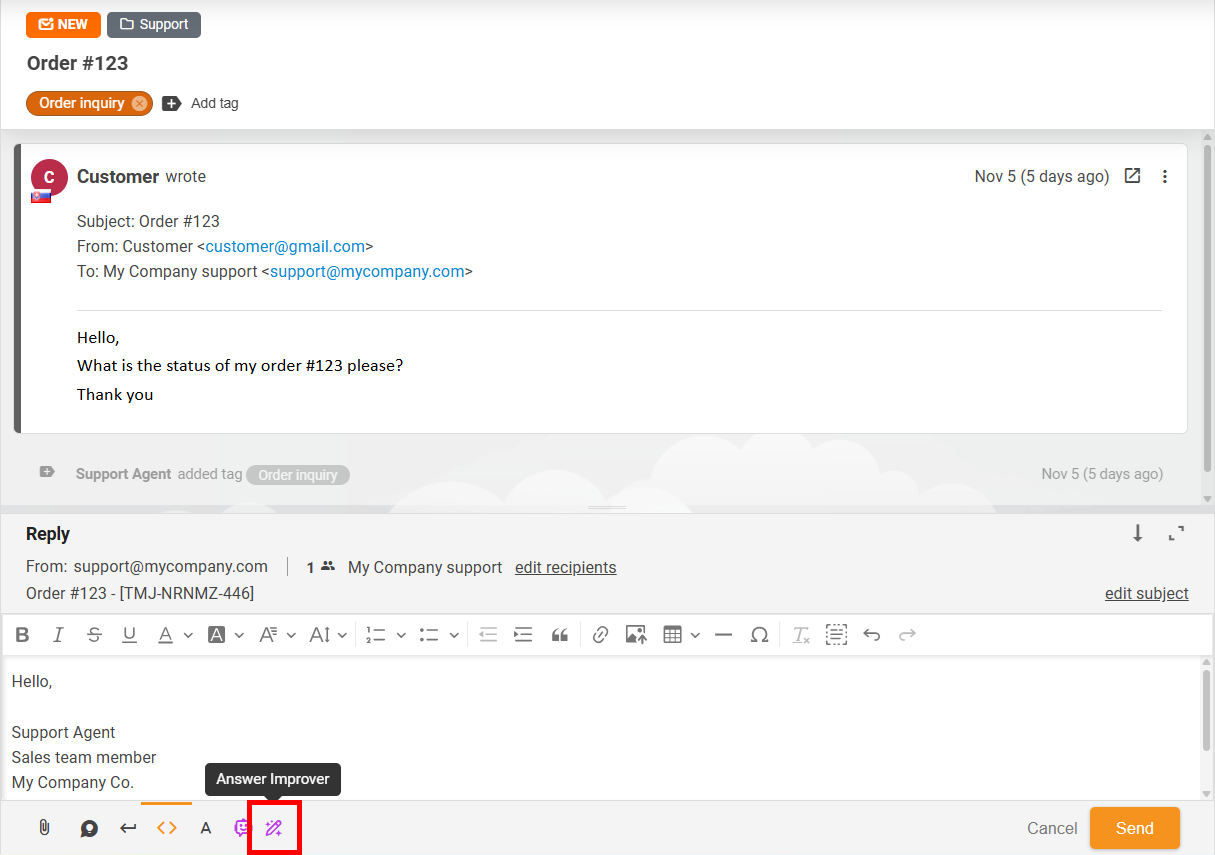
To start using Answer Improver just Open a ticket > click the Reply button > then look for the AI Answer Improver button in the reply editor.
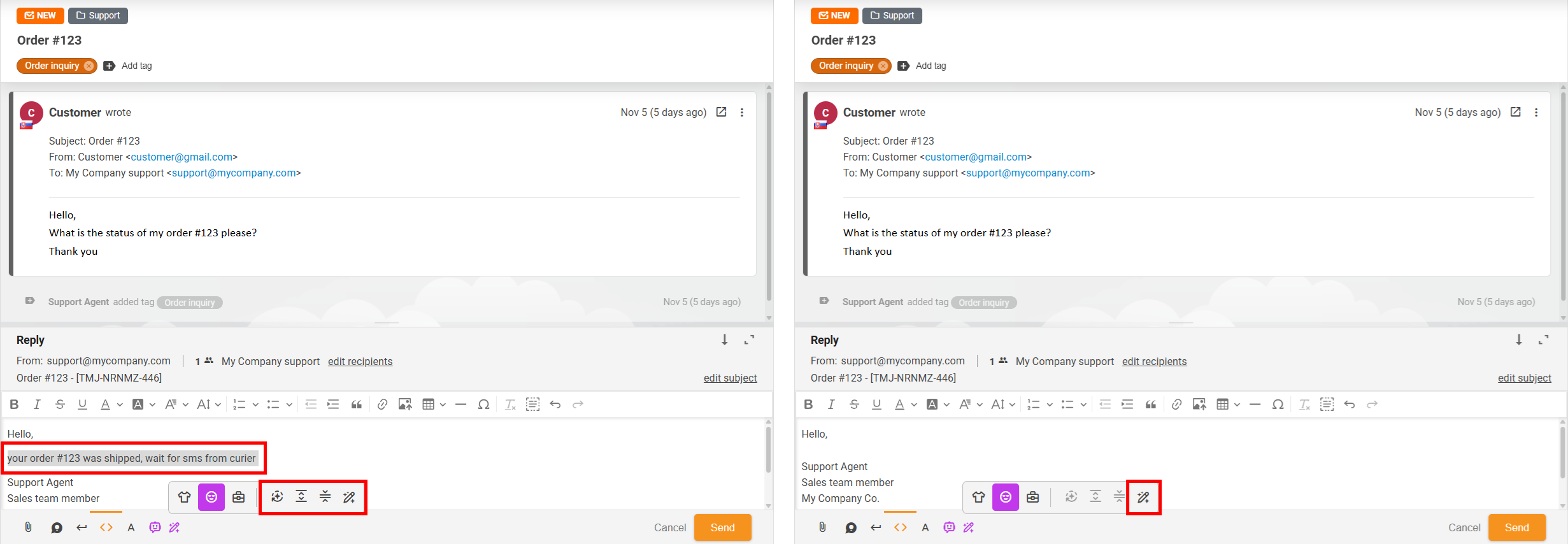
Once enabled, the AI Answer Improver becomes accessible inside the ticket reply editor through the magic-pen button. Agents can select text or work with custom instructions to instantly transform or generate polished responses.
You can choose from multiple enhancement functions depending on your needs:
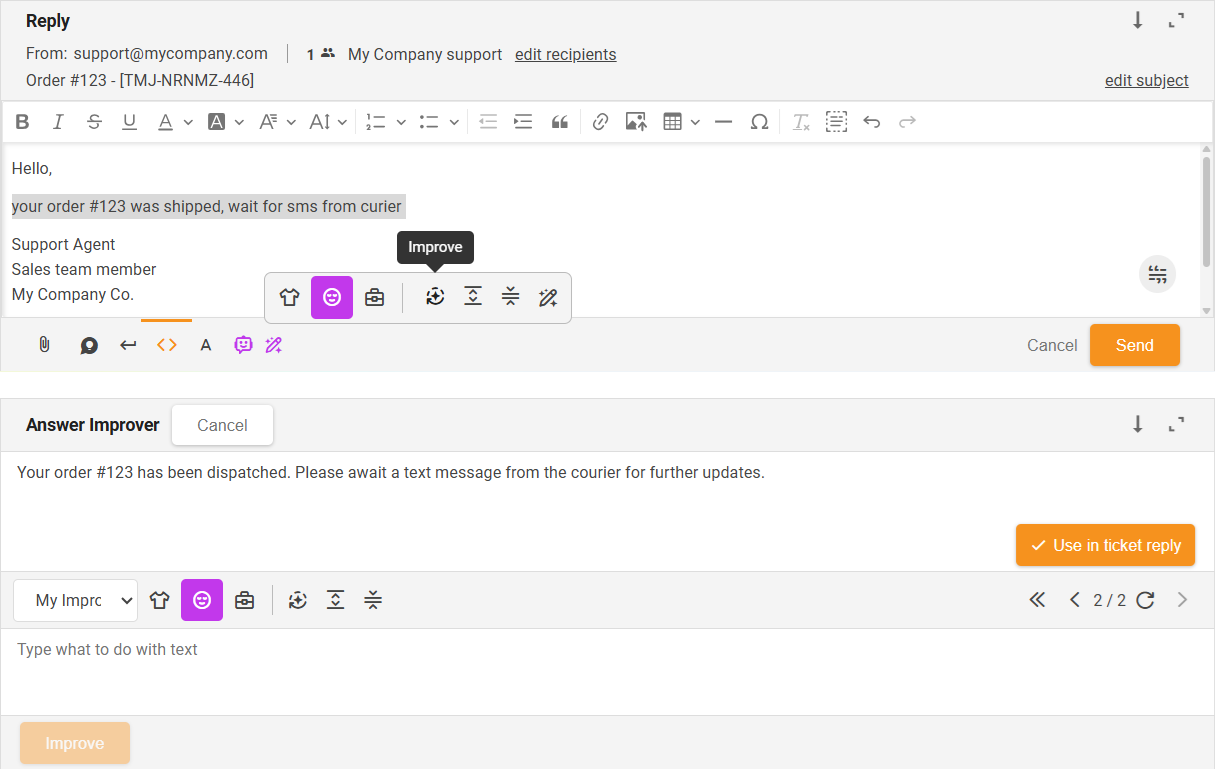
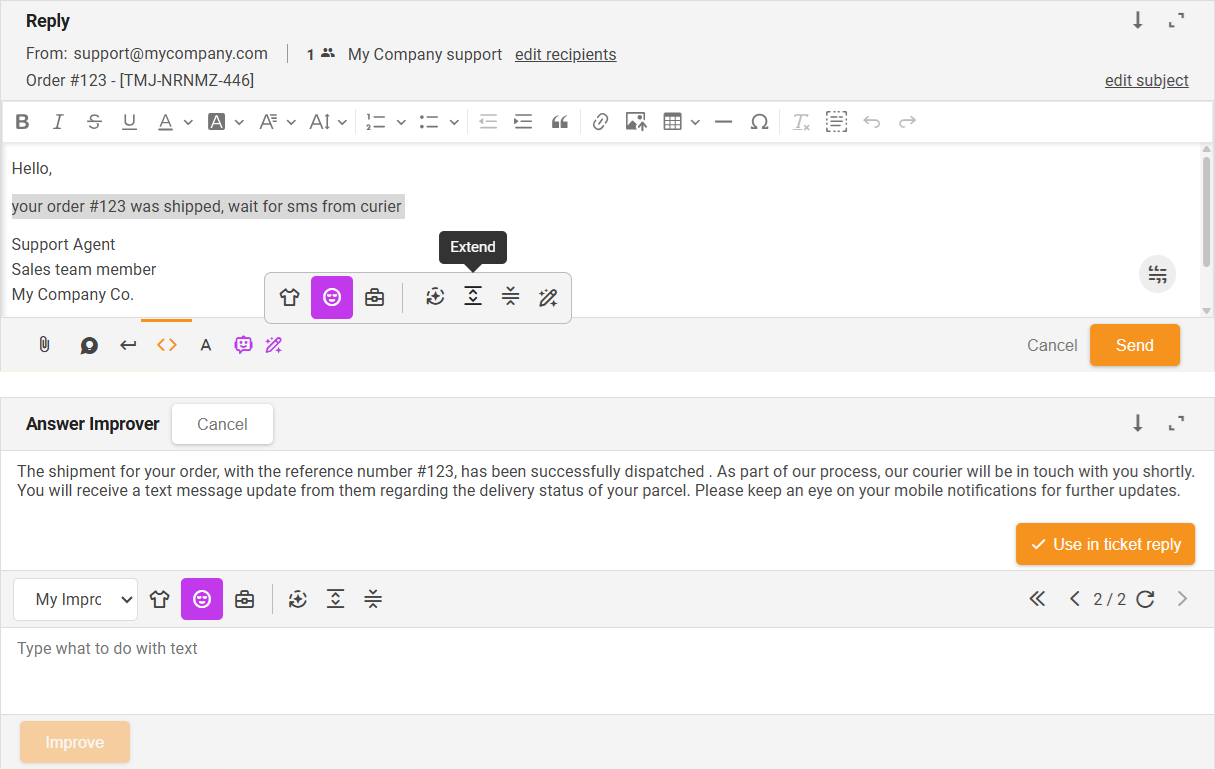
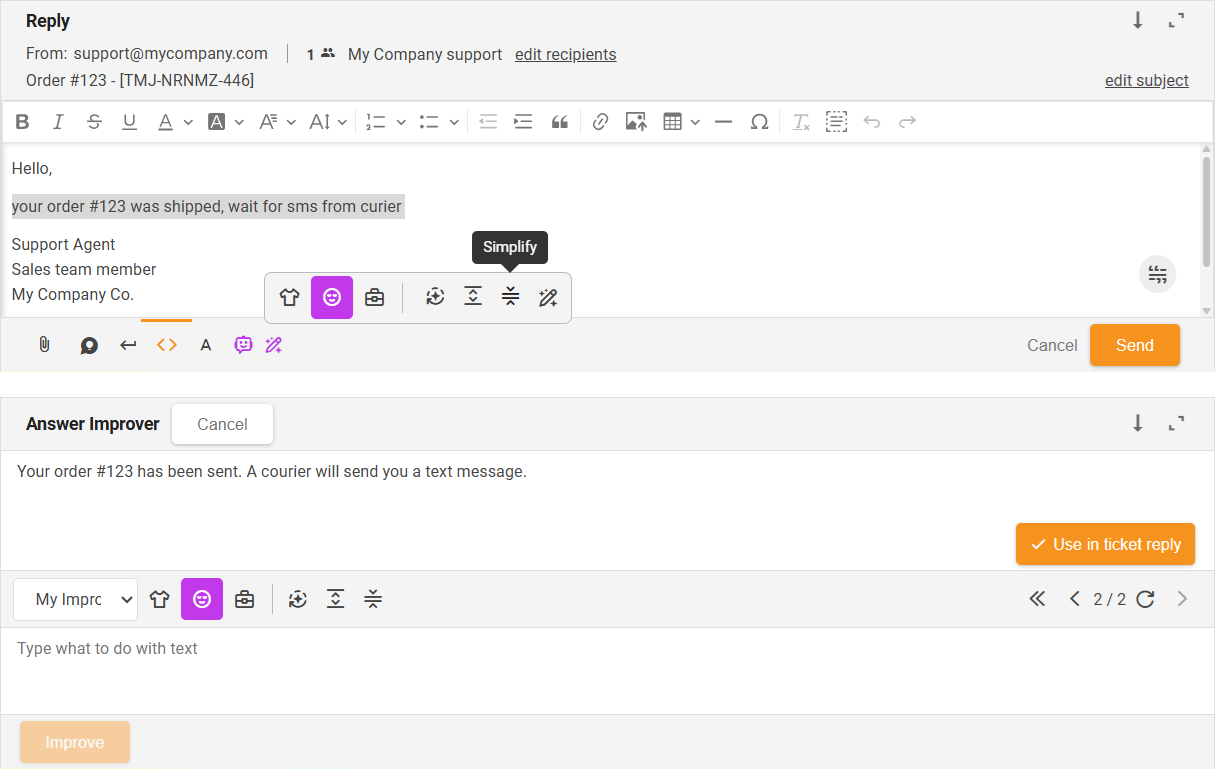
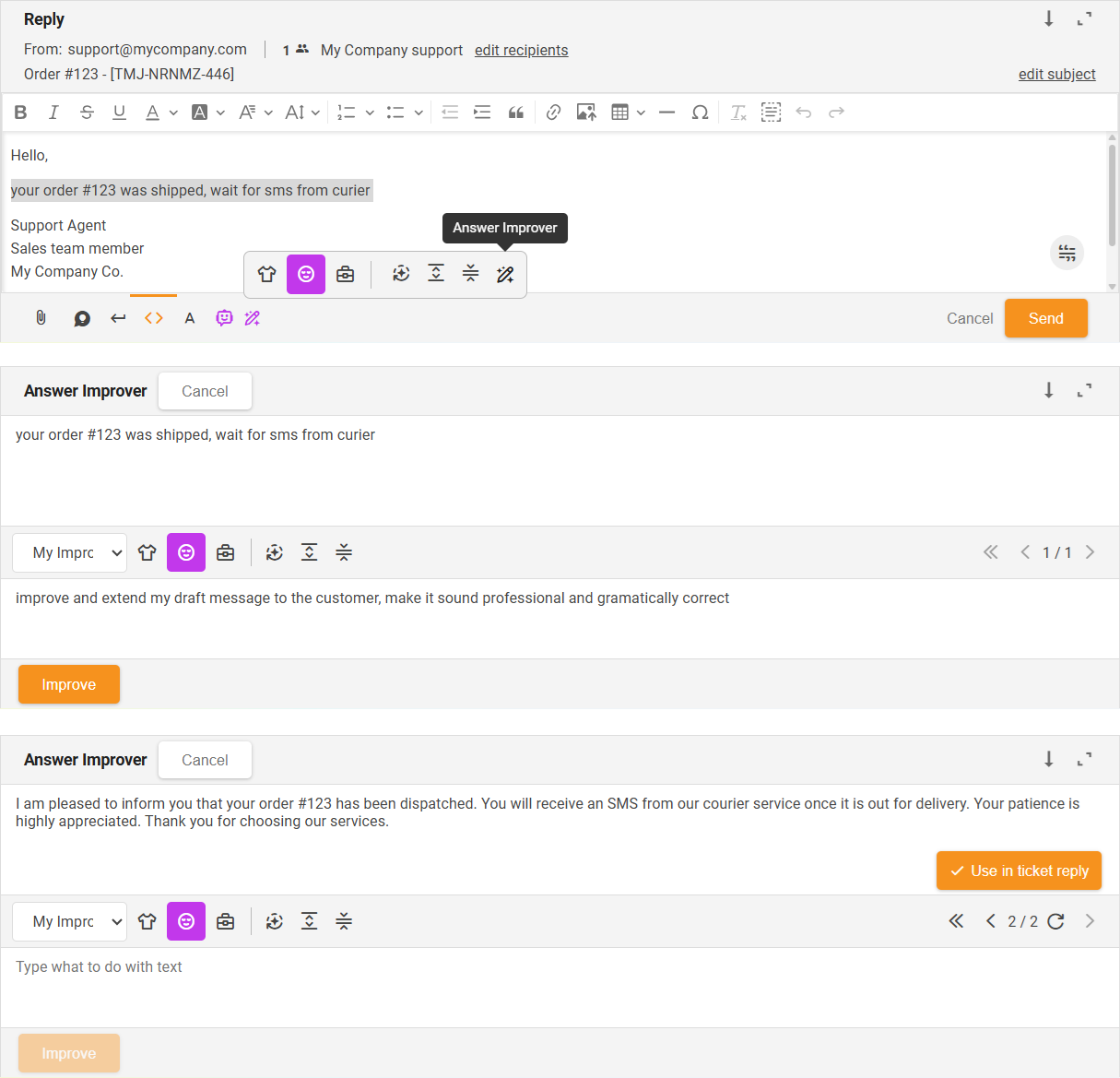
This mode allows you to write your own instructions — the AI can either:
If you’re not satisfied with the output, simply click Try Again to generate a new version. You can switch tone styles, adjust wording, improve, extend, simplify your text, or continue refining until the message fits your needs. All generated versions are stored so you can choose the best one.
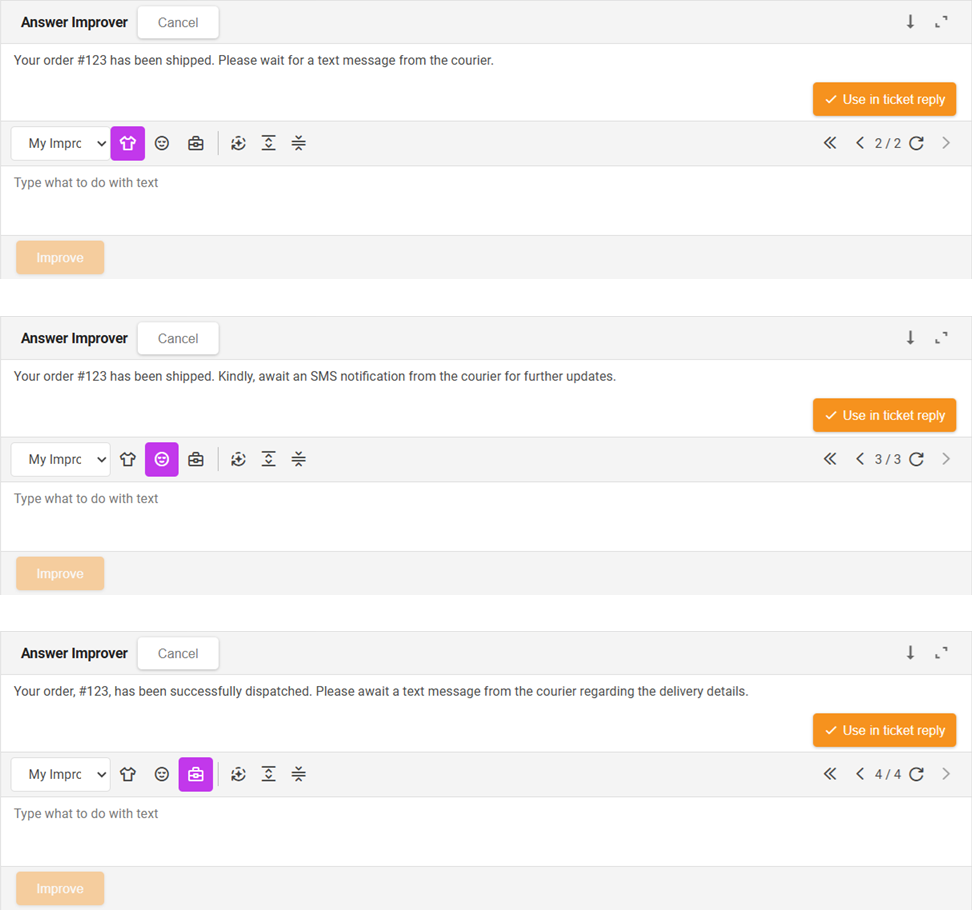
You can also choose a formality of the generated message and set the tone of the message. There are three available formality options:
The flow includes basic pre-set components for initial testing of the Answer Improver feature. After testing, you should edit the system message to match your business needs. You can also add more components to customize your workflow. If you need help adjusting the flow, contact FlowHunt support at support@flowhunt.io .
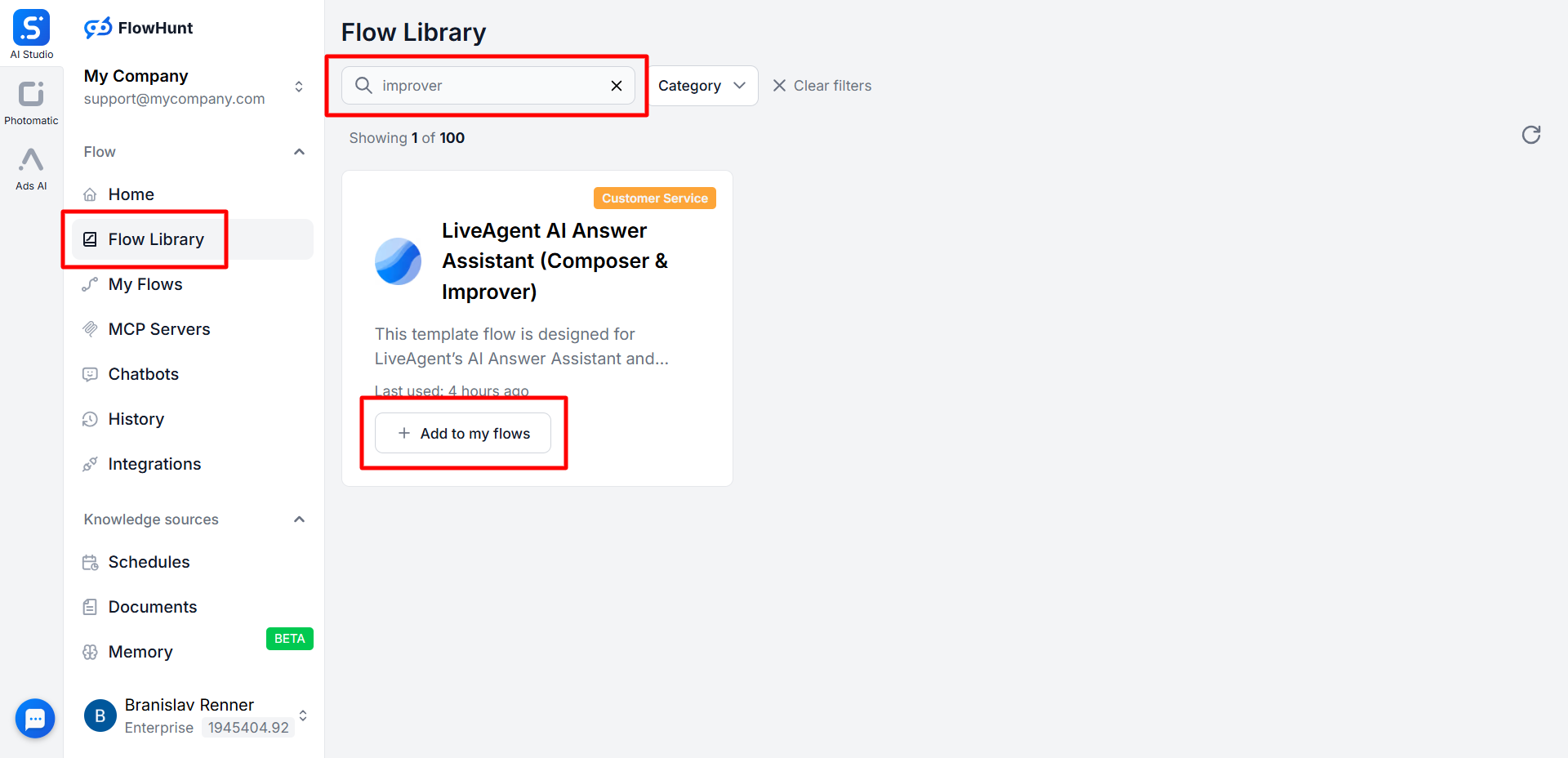
To ensure the Improver generates accurate, relevant, and up-to-date answers, it needs access to the correct information. This can be achieved by creating your knowledge sources:
Our tip: The AI Answer Improver uses all sources by default — restrict them by workspace or inside the flow if needed.
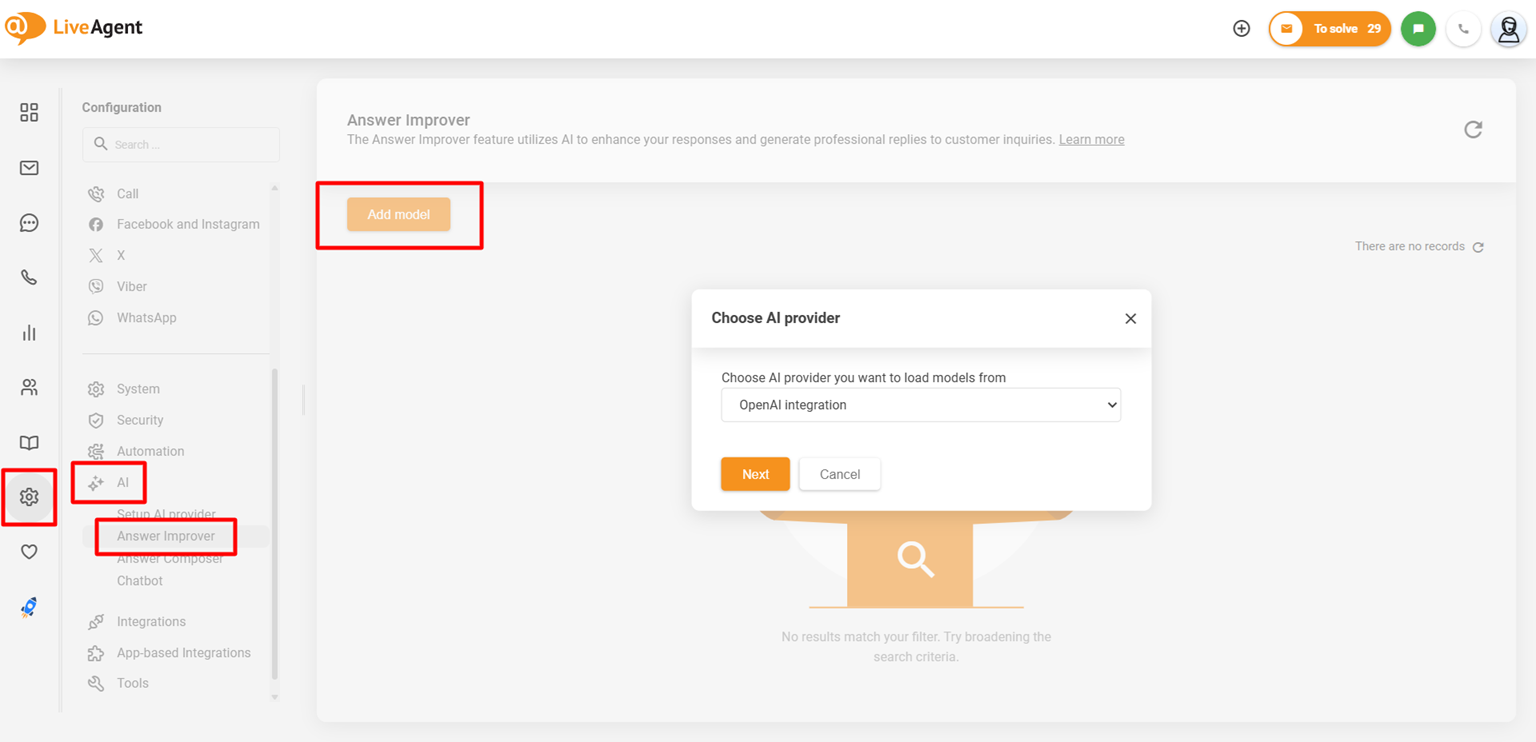
Once the model is added, you are ready to use the Answer Improver feature.
AI Answer Improver is a powerful enhancement tool built directly into LiveAgent that helps agents refine, improve, extend, or generate their replies. The Answer Improver feature is accessible from the ticket reply editor by clicking on the Answer Improver (magic pen icon) button.
Once enabled, the AI Answer Improver becomes accessible inside the ticket reply editor through the magic-pen button. Agents can select text or work with custom instructions to instantly transform or generate polished responses using functions like Improve, Extend, Simplify, or Custom Instructions.
To use the AI Answer Improver feature, it is required to connect your LiveAgent account with FlowHunt or OpenAI. FlowHunt, our no-code AI automation platform, is a product of our company, Quality Unit. By utilizing our AI features with FlowHunt, we ensure data safety and offer priority support.
Are you ready to add a real wow-factor to your customer service? Don't just take our word for it, give AI Answer Improver a try!
Transform customer support with LiveAgent AI Answer Composer—generate perfect, context-aware replies. Try it free for 30 days!
Discover LiveAgent's AI Answer Assistant, designed to streamline customer service with smart, AI-generated responses. Enhance your team's productivity, reduce c...

Get seamless assistance from LiveAgent AI Answer Assistant. Enhance customer service with instant answers, 24/7 support, no setup fees. Try free for 30 days, no...
Join our community of happy clients and provide excellent customer support with LiveAgent.