

Discord Customer Support
What is Discord?
Discord.com is a popular communication platform designed for gamers but used by a wide variety of communities. It provides voice, video, and text chat options to users, allowing them to communicate in real-time with other members of their community or team.
Discord.com allows users to create or join servers, which are essentially virtual spaces where they can communicate with others who share their interests or belong to the same group. Within these servers, users can create channels for different topics, share images and videos, and play games together.
Discord.com also includes various features such as customizable user profiles, a friends list, and the ability to create and join groups called “Discord communities.” The platform can be accessed through a web browser or a downloadable desktop or mobile app.
Discord.com has become popular not just among gamers, but also among professionals, students, and other communities. It is known for its ease of use, versatility, and security features, which include end-to-end encryption for voice and text chat.
Discord customer support channels
Email, social media, forums, and self-service assistance are all available as support channels from Discord’s customer service team.
- Support Portal: https://support.discord.com/hc/en-us
- Submission form: https://support.discord.com/hc/en-us/requests/new
- Knowledge Base: https://support.discord.com/hc/en-us
- Community Forum: https://support.discord.com/hc/en-us/community/topics
- LinkedIn: https://www.linkedin.com/company/discord/
- Twitter: https://twitter.com/discord
- TikTok: https://www.tiktok.com/@discord
- Facebook: https://www.facebook.com/discord/
- Instagram: https://www.instagram.com/discord/
- YouTube: https://www.youtube.com/discord/
How do I contact Discord?
Discord offers several customer support channels for its users. These include an extensive Help Center that provides a searchable knowledge base with answers to frequently asked questions, as well as step-by-step tutorials and guides for using the platform. You can get assistance for everything Discord offers, including account settings or permissions. See the company’s Beginner’s Guide for advice if you’re a new user of Discord services.
Discord also offers support via submission form. Users can write an email and quickly receive assistance from the Discord support team. The company also offers a community forum where users can ask questions, share tips and tricks, and get help from other Discord users. Discord staff members also participate in the forums and provide assistance when needed.
As for social media, Discord has an official Twitter account (@discord) where users can reach out for support and assistance. The Discord support team is active on Twitter and responds to user inquiries and issues. In addition to this social media account, they have an active presence on Facebook, Instagram, LinkedIn, and more video-oriented platforms like YouTube and TikTok. These customer support channels are designed to help users with their questions, issues, and concerns related to the platform.
Discord also has a team of community and customer support specialists who work to ensure that users have a positive experience on the platform.
Common problems and solutions
How to recover my lost password?
- Tap ‘forgot your password"
- Tap on this button that is right under the password space
- Enter your email with which you are trying to log in
Verify identity
- You received an email with reset password link, click on it and follow the instructions in that email and verify yourself
What is the Under 13 rule?
First of all, COPPA states that if an under 13 has parental permission, they can get data collected, which means they are technically allowed to use Discord.
All accounts that are disabled for being under 13 should be reactivated and marked as “Under 13”. Parent would need to make an account to give an approval or verify that the child is already over 13. This would make their accounts normal accounts.
How to install Discord?
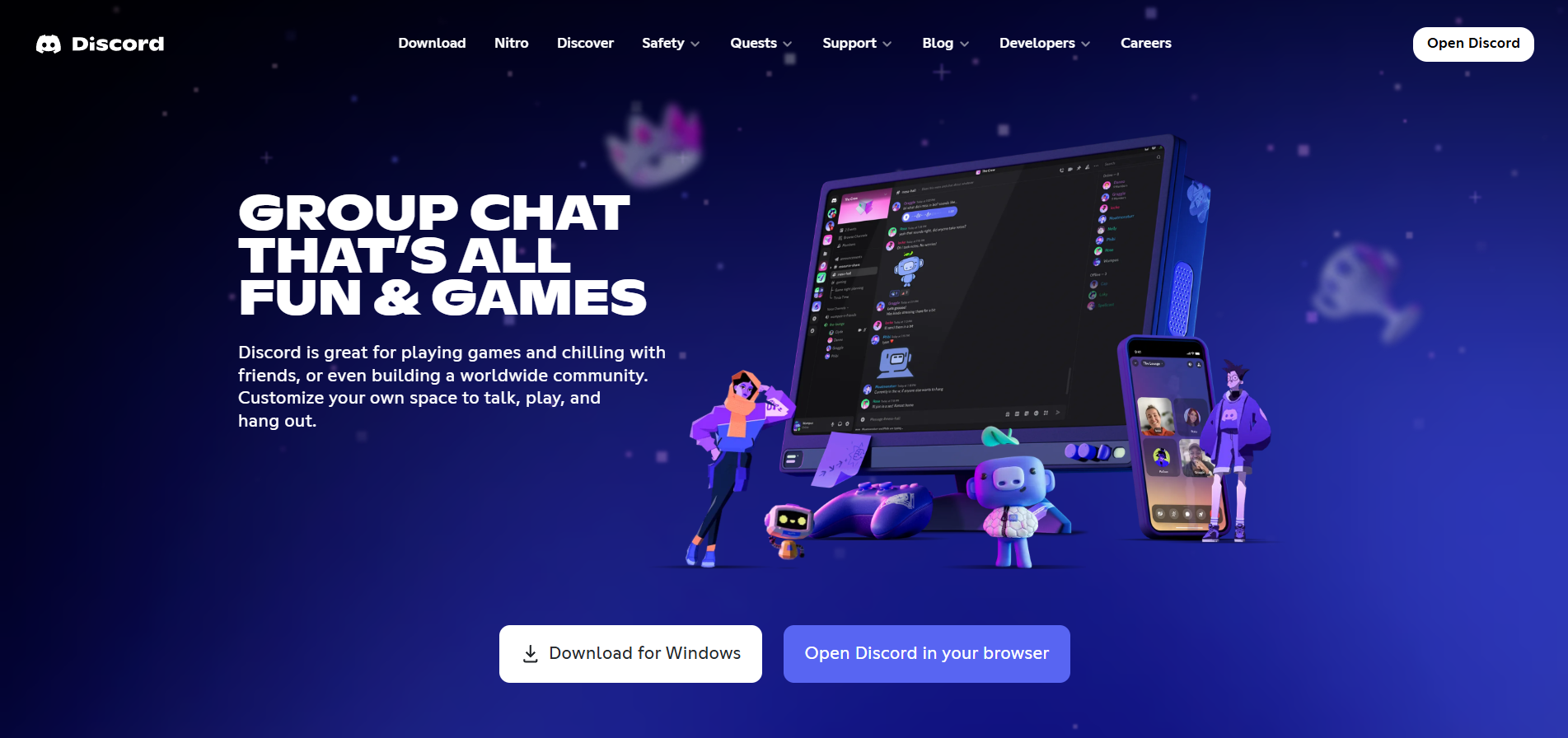
- To download Discord, go to the official Discord.com Download page
- Then, click Download for Windows
- You will be prompted to download the DiscordSetup.exe file
- The program will then begin to install and download any required updates.