
Bing Customer Support
What is Bing?
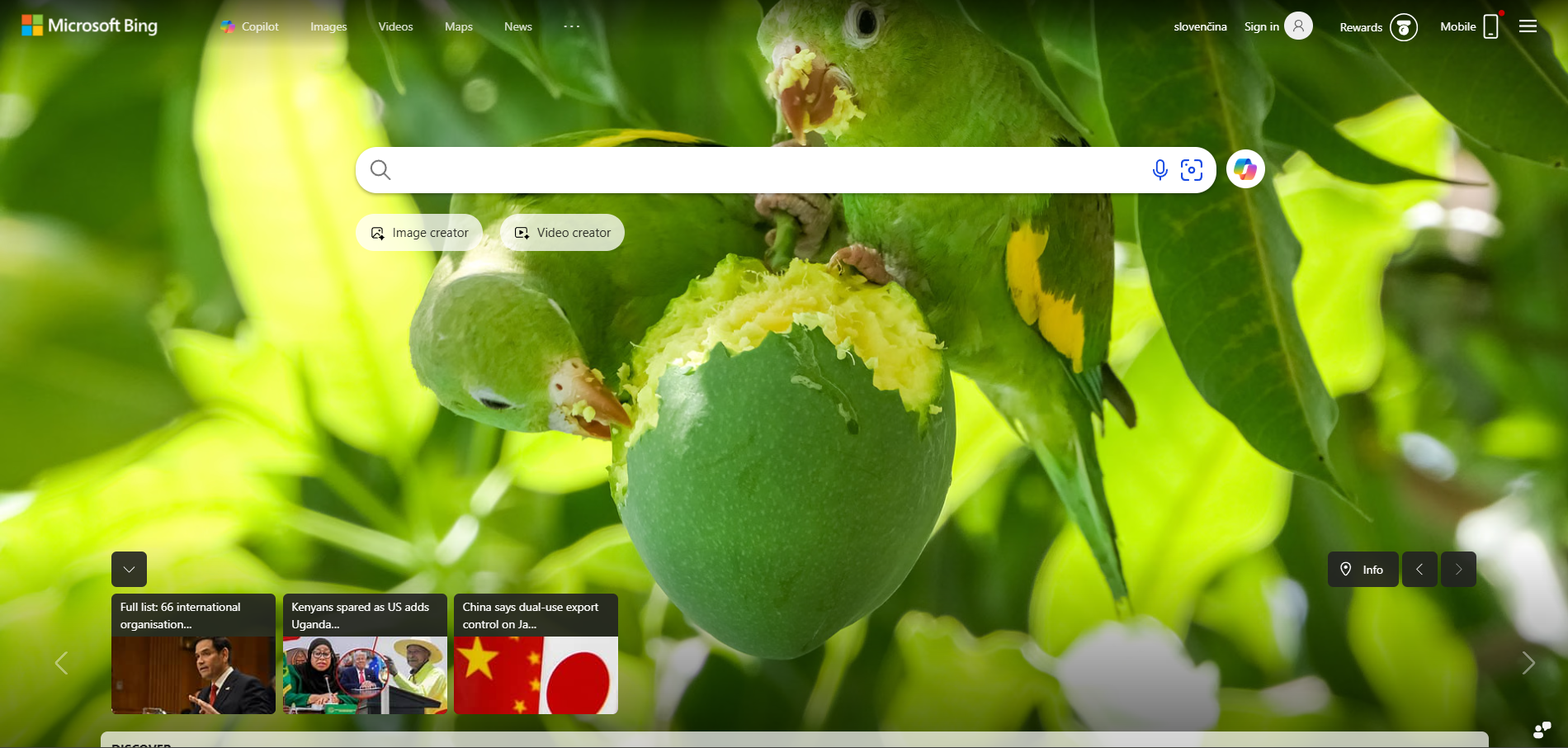
Bing is a web search engine created and owned by Microsoft. It is the second largest search engine on the web, behind Google. Bing provides a variety of services, including web, image, video, news and maps. It also offers tools to help users research and compare products.
Bing customer support channels
Bing offers a variety of support channels, including telephone support and email support. They also provide self-help options such as tutorials, FAQs, and a knowledge base. Additionally, Bing has an active presence on social media, offering customer service and technical support on Twitter, Facebook, and other platforms.
- Email: daniel@bing.com
- Phone: +1 425-882-8080
- Knowledge Base: https://help.bing.microsoft.com/
- Facebook: https://www.facebook.com/Bing/
- Twitter: https://twitter.com/bing
- YouTube: https://www.youtube.com/user/bing
How do I contact Bing?
You can reach out to Bing by following their official social media accounts. Alternatively you can also reach out to them via their email address daniel@bing.com or phone number +1 425-882-8080. However, if your prefer self-service support and want to get information about latest topics, knowledge base is the best option to go.
Common problems and solutions
How To Clear Your Bing Search History?
- Your history for all the things you search for using Bing are stored on your Microsoft account, so head on over to your Microsoft account’s privacy settings, and sign in.
- After signing in, you’ll see your account’s Privacy dashboard. Scroll down a bit to the ‘Search History" section, and then click “View And Clear Search History” button.
- This opens the “Activity History” tab of your dashboard.
- If what you want to do is clear your entire search history, you can just click the “Clear Activity” link at the top right of your search list.
- You’ll be asked to confirm your action. If you want to delete your entire search history, go ahead and click ‘Clear". If you don’t want to delete everything, you can also scroll down to view your search history. Under each individual search entry, you’ll notice two links, click ‘Delete" to get rid of just that search result.
- Note: But, if you find that you’re using Bing, and coming to clear your history every once in a while, you might want to consider using private browsing so that searches aren’t stored in the first place.
How Microsoft stores and maintains your search history?
When you search using Bing, Microsoft collects the search terms you provide, along with other information, such as your IP address and location, the unique identifiers contained in our cookies, the time and date of your search, and your browser configuration. Microsoft uses this and other data to enhance your experience and to improve our products and services.
If you’re signed in to Bing with your Microsoft account, your Bing search activity appears on the Privacy Dashboard. The privacy dashboard provides an easy way to revisit the search terms you’ve entered and results you’ve clicked while using Bing. It also provides a convenient way to clear your search history.
Deleting your search history removes it from your Microsoft account. Searches made while not signed in to your Microsoft account are unaffected by these settings, and will not be displayed on the Privacy Dashboard.
When you clear your search history, some copies may be retained within Microsoft’s backup systems for a limited time.
How to remove Bing from Chrome?
To remove Bing from the Chrome, first, try to remove it from the search engine list. If that does not work, try to get rid of the browser virus responsible for Bing redirection.
Step 1: Remove Bing using Settings
- Open the Chrome browser and go to ‘Settings".
- Now, from the left panel, select the “Search engine” option.
- Choose the search engine of your choice from the drop-down list.
- Now, select the “Manage search engines” option.
- Finally, click on the three dots next to Bing and choose “Remove from list”.
Step 2: Restart your PC in Safe Mode
Windows Safe Mode is the perfect environment to find out and solve the critical errors in the system. In safe mode, only system programs and some crucial programs run.
Step 3: Remove Web Extensions From Browser
- Click on the three dots at the top-right corner.
- Bring mouse cursor over “More tools” and from the extended menu choose “Extensions”.
- Now, all the extensions would be on your screen
- Finally, look for the ones you want to disable or remove.
Step 4: Reset Web Browser Settings
- Open Chrome and navigate to “Settings” by clicking on the three dots at the top right.
- Then, click on “Advanced”.
- Under “Reset and cleanup”, click on “Restore settings to their original defaults”.
- Then, select “Reset settings” on the next prompt.
- Finally, relaunch your browser.