

Shared mailbox
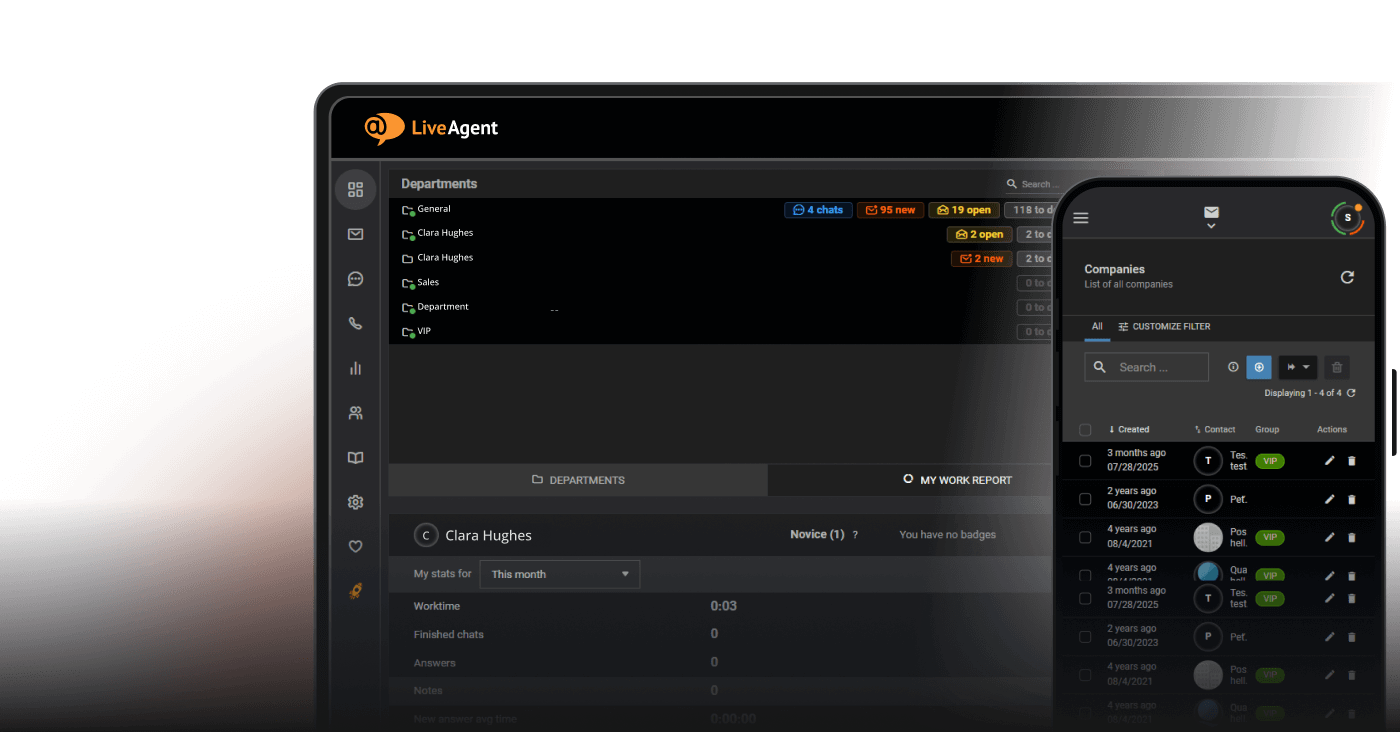
Streamline customer support with LiveAgent's shared mailbox. Collaborate, improve productivity, and boost satisfaction. Try free for 30 days!
7 min read


A shared mailbox allows teams to manage emails from a single address, enhancing collaboration and efficiency. It offers features like centralized communication, cost efficiency, and unified calendars.

A shared mailbox is a special type of email inbox that multiple users can access to send, receive, and manage emails from a single email address. This setup is perfect for teams that need to handle customer inquiries or requests since it centralizes communication and ensures that all incoming emails are addressed promptly.
As businesses grow, the need for a centralized approach to managing emails becomes apparent. Enter shared mailboxes, a tool designed to streamline communication among team members while maintaining organization and efficiency.
Shared mailboxes reduce the risk of missing important messages or needing to forward emails unnecessarily. They streamline processes and enhance team efficiency. Unlike a distribution list or a separate license for each user, all permissions are already in place for seamless operation.
Shared mailboxes and shared inboxes are often used interchangeably, but they have differences.
| Feature | Shared Mailbox | Shared Inbox |
|---|---|---|
| Purpose | For team collaboration and email management. | For team collaboration focusing on email replies and internal notes. |
| User Access | Multiple users access with their credentials. | Multiple users access usually via email clients. |
| Email Sending | Sent as the shared mailbox or on behalf of user. | Typically sent on behalf of individual user. |
| Calendar | Includes a common calendar for scheduling. | Typically does not include calendar features. |
| Implementation | Often used in Office 365 or Google Workspace. | Often used within specific email clients. |
A shared mailbox allows multiple people to manage emails from a single email address. It is ideal for teams as it does not require separate licenses or account details. Shared inboxes often appear in email clients and focus on real-time collaboration, including internal notes and tracking email conversations.
LiveAgent offers an excellent solution for managing shared mailboxes. It supports efficient team communication by integrating features for handling incoming emails and maintaining organized response times, ensuring your customer support teams operate effectively.
Shared mailboxes are a versatile tool within Microsoft 365 and other platforms like Google Workspace. They allow multiple users to send and receive emails using a central email address, such as info@yourcompany.com or support@yourcompany.com . Here are some key features that make shared mailboxes beneficial for team operations:
A shared mailbox is tailored for multiple users to work collaboratively. Here’s how it facilitates multiple user access:
Effective email management is pivotal for any team using shared inboxes. Here are ways shared mailboxes aid in email management:
Preventing duplicate responses is crucial for maintaining a professional and efficient workflow. Here’s how shared mailboxes help:
For handling shared mailboxes efficiently, consider using LiveAgent. As a top-rated solution, LiveAgent supports team communication by facilitating organized management of incoming emails, ensuring your customer support team operates smoothly.
Shared mailboxes are a great tool for teams that need to manage emails collaboratively. They allow multiple team members to access and send emails from a central account. This improves efficiency by eliminating the need to forward messages to different colleagues. Shared mailboxes also enhance response times to customer inquiries, leading to quicker communication and improved service.
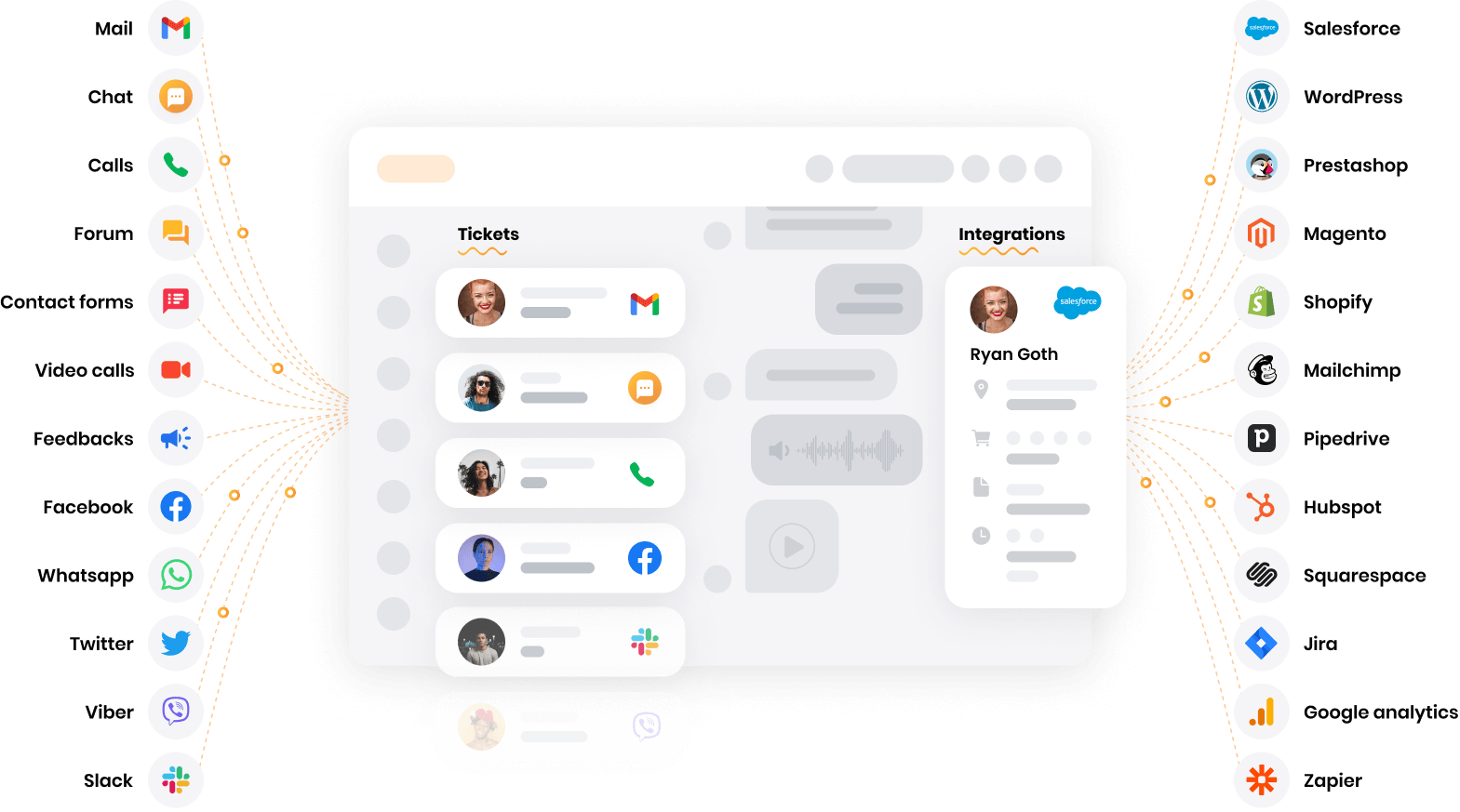
With a shared mailbox, your team gains better visibility into past emails and ongoing conversations. This collective engagement makes it easier for everyone to collaborate effectively. Additionally, since shared mailboxes don’t require a separate user account or license, administration is simplified.
Using shared mailboxes greatly improves team collaboration. For example, LiveAgent’s shared inbox allows emails to be assigned to relevant team members. This increases accountability and efficiency. Similarly, Gmelius turns a Gmail inbox into a shared workspace, enabling teamwork on emails without leaving Google Workspace. With features like internal comments, shared drafts, and canned responses, Front helps teams communicate and assist one another effectively.

Shared mailboxes promote transparent communication. They allow multiple team members to manage emails from a common address. This sense of open access supports collaboration. Within a help desk setup, shared inboxes can enhance operational transparency by offering metrics to assess workload and response times.
Tools like LiveAgent enhance accountability with features such as shared labels and email assignments. Modern teams can adapt shared mailboxes to suit cross-functional communication needs in various departmental settings.
Shared mailboxes are also vital for streamlined customer support. They allow for quick and unified responses, which is essential for high client satisfaction. Tools like Help Scout and LiveAgent provide support teams with the ability to manage customer inquiries effectively through shared mailboxes. By integrating various communication channels, these mailboxes offer a seamless experience for customers.
Unified customer conversations across different platforms help support teams deliver personalized assistance. Additionally, features such as workflow automation and task assignment in shared mailbox systems improve team productivity and response efficiency in customer support scenarios.

Ultimately, shared mailboxes are essential for enabling teamwork and enhancing communication both within teams and with customers. LiveAgent offers an excellent solution for managing shared mailboxes, providing an array of features to improve collaboration and support transparency.
When choosing software for a shared mailbox, consider compatibility with LiveAgent to facilitate easy collaboration. These mailboxes let multiple users manage a single email account using their email IDs, crucial for seamless teamwork.
Here are key points to consider:
A table summarizing software features might help visualize these considerations:
| Feature | Importance |
|---|---|
| Office 365 Compatibility | Essential for team collaboration |
| Productivity Tools | Streamlines internal communication |
| Reporting Metrics | Assess and improve team performance |
| User Limit | Optimal performance with fewer users |
| Multi-platform Access | Flexible usage across devices |
For the best solution in shared mailboxes, consider LiveAgent. It offers robust features tailored for customer service, supporting seamless team interactions and efficient email management.
Setting up a shared mailbox in Microsoft 365 is a straightforward process. Follow these steps:
Tables can help summarize these points for clarity:
| Step | Action | Notes |
|---|---|---|
| Admin Center Access | Log in to Microsoft 365 | Use your admin credentials |
| Shared Mailbox Navigation | Teams & Groups > Shared mailboxes | Find the shared mailboxes section |
| New Mailbox Creation | Add new shared mailbox | Assign a name and email address |
| Storage Management | Monitor mailbox size | Free under 50GB; license needed over 50GB |
| Mobile Access Setup | Enable on devices | Compatible with most email clients and apps |
| Sent Items Configuration | Adjust settings | Make sent items visible to all team members |
| Permission Management | Set access permissions | Users log in without a separate password |
Setting up a shared mailbox in LiveAgent is simple and effective for team collaboration. Here’s a guide:
Log In: Access your LiveAgent account with your credentials.
Configure Outgoing Email: If you wish to connect a new email account for both sending and receiving emails, it is best to start with the outbound configuration. Navigate to Configuration > Email > Outgoing Email Accounts and click the ‘Integrate new mail account" button and follow the instructions from the knowledgebase section.
Configure Incoming Email: After successfully connecting your email address as an outgoing email account, navigate to Configuration > Email > Incoming Email Accounts and click the “Integrate new mail account” button and follow the instructions.
Connection Order: In general, it is recommended to first connect your email address as an outgoing email account and after that as an incoming email account, due to the last step of the incoming email account integration, where you need to choose an already connected outgoing email account and set it up as the default sender for replying emails/tickets fetched from the incoming email account.
Use Native Connectors: It is recommended first to use native Google/Microsoft connectors when connecting email addresses provided by Google/Microsoft, as these connectors support the new Google/Microsoft OAuth authentication methods.
Connection Methods: Every connection method is divided and described in the Email feature category and its sub-categories. If you are using another mail account provider or want to connect your own mail server, you will need to select the Custom mailbox method.
Email Fetching: The Google/Microsoft connectors or IMAP/POP3 methods fetch emails from your connected incoming email account every few minutes with cron jobs, whereas forwarded emails are fetched instantly as they arrive in your email account inbox.
You can read more about email account configuration in the separate article about email accounts configuration introduction.
Managing a shared mailbox efficiently is crucial for boosting team productivity. Here are some best practices to consider:
A shared mailbox is an excellent tool for enhancing team collaboration and communication. By allowing multiple users to access a single email address, teams can efficiently manage and track email conversations. This setup is particularly beneficial for high-volume departments like customer support and finance, where quick response times are crucial.
One of the major advantages of a shared mailbox is its ability to declutter individual inboxes. It reduces the need for forwarding emails and using CCs or BCCs, helping teams stay organized. Moreover, shared mailboxes can be set up at no additional cost beyond necessary user licenses, making them a budget-friendly solution for many organizations.
For teams seeking the best shared mailbox setup, LiveAgent stands out as a top choice. LiveAgent offers robust features that streamline email management and ensure nothing slips through the cracks in communication. By adopting a shared mailbox through solutions like LiveAgent, organizations can improve their efficiency and responsiveness, ultimately enhancing customer satisfaction. Try it by yourself by starting a free 30-day trial today.
Transform team collaboration with LiveAgent's shared inbox features. Assign emails, track conversations, and never miss a customer message.
Streamline customer support with LiveAgent's shared mailbox. Collaborate, improve productivity, and boost satisfaction. Try free for 30 days!

Discover top email management software for streamlining communication and boosting productivity. Learn about key features, pricing, and benefits to enhance emai...
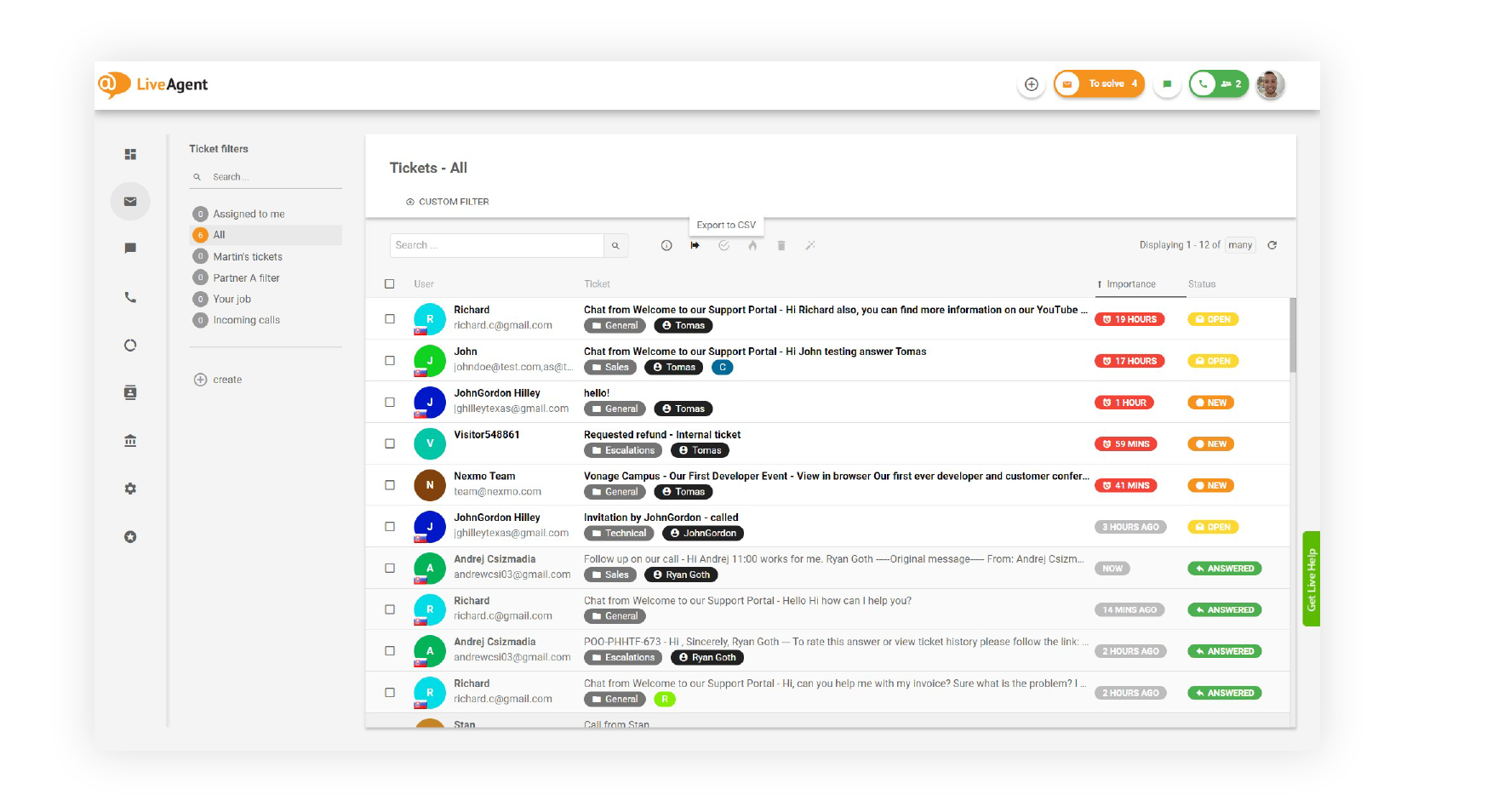
LiveAgent's universal inbox centralizes emails, calls, social media, and chats into one dashboard, boosting agent efficiency and customer satisfaction. Features...
Join our community of happy clients and provide excellent customer support with LiveAgent.